UK Based - YouTube Certified Expert Alan Spicer is a YouTube and Social Media consultant with over 2 Decades of knowledge within web design, community building, content creation and YouTube channel building.
Last updated: 16 August 2026 · By Alan Spicer, YouTube Certified Expert
The 8,000-hour headline has a lot of monetised creators worried they are about to be kicked out of the Partner Program. Short version: you are not. The 2027 changes are an entry rule for new applicants, not a purge of existing partners. But there is one thing you must do before 31 January 2027, and there are real ways to lose monetisation that have nothing to do with watch hours. Here is exactly where you stand.
The reassurance, in one line
If you are already monetised, the new 8,000-hour and 20-million-Shorts thresholds do not apply to you. You are grandfathered in. Just accept the updated terms in Studio by 31 January 2027 so your earnings do not pause.
Why listen to me
I’m Alan Spicer, a YouTube Certified Expert with six Silver Play Buttons and 500+ creators coached. I have helped people through monetisation changes before, so here is the calm, accurate version of what 2027 does and does not do to your channel.
No, not because of the new thresholds. The 8,000 watch hours and 20 million Shorts views apply only to new applicants. If you are already in the Partner Program you are grandfathered in and keep your status. The one thing you must do is accept the updated terms in YouTube Studio by 31 January 2027.
Will the 2027 thresholds remove your monetisation?
No. This is the point that gets lost in the panic. The doubled thresholds, 8,000 qualified watch hours or 20 million qualified Shorts views, are entry requirements for new applicants. YouTube has confirmed that creators already in the Partner Program are not affected by them. You keep your status and you keep earning. The change makes joining harder, not staying. For the full breakdown of what changed, read the 2027 requirements guide.
The one thing you must do before 31 January 2027
⚡ QUICK ANSWER
What happens if you don’t accept the updated terms by 31 January 2027?
From 1 February 2027 you stop earning from the affected monetisation features until you accept. It does not remove you from the Partner Program on its own. To switch earning back on, review and accept the updated modules in YouTube Studio, and access returns.
There is one action that is not optional. YouTube is updating the Partner Program terms, and every existing partner must review and accept them in YouTube Studio by 31 January 2027. Miss the deadline and, from 1 February 2027, you stop earning from the affected features until you accept. It does not remove you from the programme, and accepting restores access, but why risk a gap in your income over a five-minute job?
Do this now, not in January
In Studio, open the terms notice on your dashboard or the Earn tab, review each module (Watch Page, Shorts, and Commerce where it applies), and accept. Full steps are in YouTube’s terms-change help page. Sorting it early means it is done, and your new Premium Lite revenue just kicked in too.
Can dropping below the threshold demonetise you?
⚡ QUICK ANSWER
Can you lose monetisation if your watch hours drop below 8,000?
No. YouTube does not automatically remove monetisation if your watch hours drop below the threshold once you are in. The thresholds are for entry, not maintenance. For Shorts, ad revenue pauses if you fall below 10 million qualified views in 90 days, but you stay in the programme and keep earning on long-form.
YouTube states plainly that it will not automatically remove your monetisation if you drop below the threshold once you are in the programme. The 8,000 hours is a door you walk through once, not a bar you have to clear every year to stay. The one nuance is Shorts: if your qualified Shorts views fall below 10 million over a rolling 90 days, Shorts ad revenue pauses, but you remain in the Partner Program, keep earning on long-form, and Shorts pay resumes automatically when you climb back. More on that in can YouTube Shorts be monetised.
The real ways you can lose monetisation
Monetisation does get removed, just not for the reasons people fear. Here is what really puts it at risk, straight from YouTube’s channel monetisation policies.
Real risk
What it means
Policy or Community Guidelines violations
Breaking the monetisation policies or guidelines can turn off monetisation or terminate the channel, whatever your subscriber count or views. Clear strikes fast (appeal community strikes).
Inauthentic or reused content
Mass-produced, repetitive or reused content without real added value is ineligible. Low-effort AI voiceover channels and unmodified compilations are targeted.
Misrepresenting your activity
Manipulating engagement or using deceptive practices breaches creator integrity rules and risks removal.
Six months of inactivity
YouTube can remove monetisation from channels with no uploads or community posts for six months or more.
Not accepting the 2027 terms
Earnings from the affected features pause until you accept, though this one is fully reversible.
A quiet month will not demonetise you. A copyright mess, a policy breach, mass-produced content, or vanishing for half a year will. Protect your channel by staying clean, original and active, not by obsessing over the threshold. Copyright trouble? See how to appeal copyright strikes.
How to protect your monetisation
Five habits keep you safely monetised through 2027 and beyond.
1Accept the updated terms by 31 January 2027
Open YouTube Studio, find the terms notice on your dashboard or in the Earn tab, and accept the updated modules. This is the single action every existing partner must take to keep earning without a gap.
2Keep a clean policy record
Follow the monetisation policies and Community Guidelines, and clear any active strikes. Policy violations, not a drop in watch hours, are the most common reason channels lose monetisation.
3Make original, authentic content
Mass-produced, repetitive or reused content without real added value is ineligible for monetisation. Put your own commentary, editing or creativity into everything you publish.
4Stay active
YouTube can remove monetisation from channels inactive for six months or more. Keep a steady upload or community-post habit so your channel never goes dormant.
5Keep your public watch time healthy
You will not be removed for a dip, but an active, growing channel is a safe channel. Keep publishing content people watch so your numbers stay strong.
No. A short dip in views or watch hours does not remove your monetisation. YouTube does not automatically demonetise channels that fall below the entry threshold once they are in the programme.
How long can a channel be inactive before losing monetisation?
YouTube can remove monetisation from channels with no uploads or community posts for six months or more. It is at YouTube’s discretion, so the safe approach is to keep posting well before you reach that point.
Do you lose monetisation if you get a Community Guidelines strike?
A single strike does not automatically demonetise you, but repeated violations can lead to your monetisation being turned off or your channel terminated. Clear strikes promptly and avoid further violations.
Can you reapply after being demonetised?
Yes. Read the specific policy in the Earn section of Studio, fix the problems, and reapply after any suspension period. Do not spin up new channels to dodge a removal, as that can lead to further action.
Frequently asked questions
Will you lose YouTube monetisation in 2027?
No, not because of the new thresholds. The 8,000 watch hours and 20 million Shorts views apply only to new applicants. If you are already in the YouTube Partner Program you are grandfathered in and keep your status. The one thing you must do is accept the updated terms in YouTube Studio by 31 January 2027.
Do existing YouTube channels lose monetisation under the new rules?
No. YouTube has confirmed the higher entry thresholds do not apply to channels already in the Partner Program. Existing creators keep monetising. The change only makes it harder for new channels to join, not for current partners to stay.
What happens if you don’t accept the updated terms by 31 January 2027?
From 1 February 2027 you stop earning from the affected monetisation features until you accept. It does not remove you from the Partner Program on its own. To switch earning back on, review and accept the updated modules in YouTube Studio, and access returns.
Can you lose monetisation if your watch hours drop below 8,000?
No. YouTube does not automatically remove monetisation if your watch hours drop below the threshold once you are in. The thresholds are for entry, not maintenance. For Shorts, ad revenue pauses if you fall below 10 million qualified views in 90 days, but you stay in the programme and keep earning on long-form.
Can YouTube remove monetisation for inactivity?
Yes. YouTube reserves the right to remove monetisation from channels that are inactive, with no uploads or community posts, for six months or more. The simplest protection is to keep publishing. A steady upload habit keeps your channel active and your monetisation safe.
What are the real reasons channels get demonetised?
Violating the YouTube channel monetisation policies or Community Guidelines, posting inauthentic or mass-produced content, misrepresenting your activity, and long inactivity. These, not a dip in watch hours, are what cost channels their monetisation, regardless of subscriber count or views.
Are you grandfathered in if you’re monetised before February 2027?
Yes. Creators already in the Partner Program before 1 February 2027 keep their monetisation under grandfathered status. This is also why it is worth applying now if you can reach the current 4,000-hour bar before the deadline.
Can you get monetisation back after losing it?
Often, yes. If earnings paused because you did not accept the terms, accept them to restore access. If you were removed for a policy violation, read the policy in the Earn section of Studio, fix the issues, and reapply after any suspension period. Do not create new channels to get around a removal.
The bottom line
If you are already monetised, breathe out. The 2027 thresholds are for new applicants, you are grandfathered in, and a dip in watch hours will not remove you. Accept the updated terms in Studio before 31 January 2027, keep your channel clean, original and active, and your monetisation is safe. The creators who lose it break the rules or go quiet, not the ones who simply dropped below 8,000 hours. Next, make sure you understand what qualified watch hours and views are so your numbers always add up.
Last updated: 16 August 2026 · By Alan Spicer, YouTube Certified Expert
Buried inside YouTube’s 2027 monetisation shake-up is a change that pays you, not costs you: Premium Lite is expanding to every country where YouTube Premium is sold, and creators earn from a bigger revenue pool on it. While everyone panics about the 8,000-hour bar, this is the quiet upside. Here is what Premium Lite is, how you get paid from it, and why a viewer subscribing can be worth more to you than a viewer watching ads.
Premium Lite for creators, in one line
A cheaper, ad-free tier rolling out worldwide in 2027. YouTube puts 60% of net Premium Lite subscription revenue into a creator pool (versus 30% for full Premium), shared by watch time. On average, a Premium viewer pays you more than an ad viewer.
Why listen to me
I’m Alan Spicer, a YouTube Certified Expert with six Silver Play Buttons and 500+ creators coached. I read the Partner Program terms so you do not have to, and here is the part of the 2027 update that helps you.
What is YouTube Premium Lite and how do creators earn from it?
Premium Lite is a lower-cost, ad-free YouTube subscription expanding to all Premium countries in 2027. When subscribers watch your content, you earn from a revenue pool instead of ads: YouTube puts 60% of net Premium Lite subscription revenue into a creator pool, shared by watch time, with a 55% creator share on long-form and 45% on Shorts.
What is YouTube Premium Lite?
⚡ QUICK ANSWER
What is YouTube Premium Lite?
YouTube Premium Lite is a lower-cost subscription tier that gives uninterrupted, offline and background viewing of most content, without the YouTube Music benefits of full Premium. From 2027 it is expanding to every country where YouTube Premium is sold.
Premium Lite is the budget version of YouTube Premium. It gives viewers ad-free, offline and background viewing of most videos, but drops the YouTube Music Premium benefits that come with the full tier. That makes it cheaper than full Premium, which is $15.99 a month for an individual in the US. If you want the consumer-side detail, I cover it in how much YouTube Premium costs.
What is changing for 2027
On 10 August 2026, YouTube announced that Premium Lite is expanding to all countries where Premium is available. It had been limited to a subset of markets since it relaunched in 2025; now it closes the gap so it matches full Premium’s footprint. The change is folded into the wider Partner Program terms update that creators must accept by 31 January 2027, effective 1 February 2027. For the complete picture of every 2027 change, read the 2027 requirements guide.
How creators earn from Premium Lite
⚡ QUICK ANSWER
How do creators earn from YouTube Premium Lite?
When someone watches your content as a Premium Lite subscriber, you earn from a shared revenue pool instead of from ads. YouTube puts 60% of net Premium Lite subscription revenue into a creator pool, then distributes it by member watch time and views. Your creator share is 55% on long-form and 45% on Shorts.
When a Premium Lite subscriber watches your video, there are no ads on that view, so instead of ad revenue you earn a slice of their subscription. YouTube pools that money and shares it out by how much Premium members watch. Two numbers do the work, and people mix them up, so here they are cleanly.
The 60% is how much of the Premium Lite subscription money goes into the creator pool. The 55% / 45% is your revenue share applied to your slice of that pool. They stack; they are not the same number. The practical takeaway: the more Premium members watch your content, the bigger your share.
Premium Lite vs Premium: the revenue difference
Premium Lite routes a bigger share of its subscription revenue into the creator pool than full Premium (60% versus 30%). Full Premium subscribers tend to be worth more overall because the subscription costs more and includes Music, but the headline for creators is simple: both tiers pay you from subscriptions, and both reward the long, watchable content Premium members favour. For the fuller earnings picture, see do YouTubers get paid from Premium and what YouTube RPM means.
Does Premium Lite pay creators more than ads?
⚡ QUICK ANSWER
Does Premium Lite pay creators more than ads?
On average, yes. YouTube says creators earn more per user when a viewer becomes a Premium subscriber than when that same viewer keeps watching ad-supported content, based on 2026 performance. So more viewers on Premium and Premium Lite can mean more income from the same audience.
This is the part worth sitting up for. YouTube states that, on average, a creator earns more per user from Premium than from ads. So when your audience shifts from ad-watching to Premium Lite, you are not losing ad money, you are usually gaining subscription money, often more of it. Expanding Premium Lite worldwide grows the pool of subscribers whose watch time pays you. It rewards exactly the strategy that gets you monetised in the first place: longer content people finish, covered in how to get 1,000 subscribers and 8,000 watch hours.
What to do before 1 February 2027
If you are already in the Partner Program, there is a small admin job so your Premium Lite earnings switch on smoothly.
1Open YouTube Studio and find the terms notice
The updated Partner Program terms appear on your Studio dashboard and in the Earn section. This is where you accept the changes that include Premium Lite revenue.
2Accept the updated monetisation modules by 31 January 2027
Review and accept the relevant modules, the Watch Page Monetization Module, the Shorts Monetization Module, and the Commerce Product Module where it applies. Miss the deadline and earnings from those features pause until you accept.
3Keep making long, watchable content
Premium and Premium Lite pools are shared by member watch time, so longer content that Premium members finish earns you a bigger slice. This is the same content that builds your watch hours.
4Track your Premium earnings in Analytics
Premium Lite income is folded into your standard Premium metrics, so watch that figure grow as the tier expands to more countries and more of your audience subscribes.
It is expanding to every country where YouTube Premium is sold, closing a gap of roughly 57 markets. If full Premium is available where you are, Premium Lite is rolling out to you as part of the 2027 changes.
Does Premium Lite include YouTube Music?
No. Premium Lite keeps ad-free, offline and background viewing of most videos but drops the YouTube Music Premium benefits that come with full Premium. That is the main trade-off for the lower price.
How is the Premium Lite creator pool split?
YouTube puts 60% of net Premium Lite subscription revenue into a creator pool and shares it by member watch time and views. Your revenue share of that is 55% for long-form and 45% for Shorts.
Do creators get paid when someone watches on Premium Lite?
Yes. When a Premium Lite subscriber watches your content, you earn from the subscription pool instead of from ads on that view. On average, that pays more per viewer than ad-supported viewing.
Frequently asked questions
What is YouTube Premium Lite?
YouTube Premium Lite is a lower-cost subscription tier that gives uninterrupted, offline and background viewing of most content, without the YouTube Music benefits of full Premium. From 2027 it is expanding to every country where YouTube Premium is sold.
How do creators earn from YouTube Premium Lite?
When someone watches your content as a Premium Lite subscriber, you earn from a shared revenue pool instead of from ads. YouTube puts 60% of net Premium Lite subscription revenue into a creator pool, then distributes it by member watch time and views. Your creator share is 55% on long-form and 45% on Shorts.
How much of Premium Lite revenue goes to creators?
YouTube allocates 60% of net Premium Lite subscription revenue to a dedicated creator pool, compared with 30% for standard Premium. That pool is then shared out across creators based on how much Premium members watch. On top of that, the creator revenue share is 55% for long-form and 45% for Shorts.
Does Premium Lite pay creators more than ads?
On average, yes. YouTube says creators earn more per user when a viewer becomes a Premium subscriber than when that same viewer keeps watching ad-supported content, based on 2026 performance. So more viewers on Premium and Premium Lite can mean more income from the same audience.
Is Premium Lite cheaper than YouTube Premium?
Yes. Premium Lite is a lower-cost tier than full YouTube Premium, which is $15.99 a month for an individual in the US. Premium Lite drops the YouTube Music benefits and some extras in exchange for a lower price, while keeping ad-free viewing of most videos.
What is the difference between the 60% pool and the 55% creator share?
They are two different layers. The 60% is the portion of net Premium Lite subscription revenue that YouTube puts into the creator pool. The 55% (long-form) and 45% (Shorts) are your revenue share applied to your slice of that pool. Do not confuse the two figures.
Do I need to do anything for the 2027 Premium Lite changes?
If you are already monetised, review and accept the updated terms in YouTube Studio by 31 January 2027, including the Watch Page and Shorts monetisation modules. Miss the deadline and earnings from those features pause until you accept. New Premium Lite revenue then flows automatically.
Where do Premium Lite earnings show in YouTube Analytics?
Premium Lite earnings are included in your standard YouTube Premium metrics in Analytics, not as a separate line. So your Premium revenue figure already reflects both full Premium and Premium Lite viewing of your content.
The bottom line
Premium Lite is the good news hiding in the 2027 changes. A cheaper, ad-free tier is going worldwide, 60% of its subscription revenue flows into a creator pool, and a Premium viewer is on average worth more to you than an ad viewer. Accept your updated terms before 1 February 2027, keep making the long, watchable content these pools reward, and let the expansion work in your favour. Then make sure your Shorts and long-form both pull their weight while you are at it.
Last updated: 20 August 2026 · By Alan Spicer, YouTube Certified Expert
“Qualified” is the word that trips people up in YouTube’s 2027 monetisation rules. You need 8,000 qualified watch hours or 20 million qualified Shorts views, and not everything in your Studio dashboard counts. Here is exactly what qualifies, what does not, and what YouTube means by an “engaged view,” so your real number matches the one that gets you monetised.
Qualified, in one line
Qualified watch hours = public long-form and live watch time. Qualified Shorts views = engaged views on public Shorts (people who watch past the opening, not loops). Private, deleted, paid, ad and first-frame activity does not count.
▶️ What Is A Qualified View on YouTube? — Alan explains what makes a view qualify
Why listen to me
I’m Alan Spicer, a YouTube Certified Expert with six Silver Play Buttons and 500+ creators coached. I track these thresholds for clients every week, so this is the plain-English version of YouTube’s own explainer.
Qualified watch hours are watch time from your public long-form videos and live streams over a rolling 365 days. Qualified Shorts views are engaged views on your public Shorts over 90 days, meaning people who watched past the opening seconds, not loops. Private, deleted, paid, ad and first-frame activity does not count.
What are qualified watch hours?
⚡ QUICK ANSWER
What are qualified watch hours on YouTube?
Qualified watch hours are watch time from your public long-form videos, including podcasts, and archived live streams. YouTube counts them over a rolling 365 days toward the Partner Program threshold. Watch time from private, unlisted or deleted videos, and from non-organic or paid traffic, does not count.
Reaching 8,000 hours does not mean collecting any 8,000 hours from your Studio dashboard. In its August 2026 explainer, YouTube says qualified watch hours must come from public long-form videos (including podcasts) or archived live streams, measured over the previous 365 days. That last part matters: it is a rolling window, so hours older than a year drop off. For the fundamentals, see what YouTube watch time is.
What are qualified Shorts views?
⚡ QUICK ANSWER
What are qualified Shorts views?
Qualified Shorts views are engaged views on your public Shorts that appear in the Shorts Feed. An engaged view means the viewer stayed past the opening few seconds. Loops, plays counted at the first frame, plays while the Short ran as an ad, and views on image posts do not count.
The Shorts side is where the public view count and the qualifying count drift furthest apart. YouTube counts a qualified Shorts view only when it comes from a public Short in the Shorts Feed and it is an engaged view. Your headline Shorts number in Analytics can be far higher than the number that counts toward the 20 million threshold. For how Shorts pay once you qualify, see can YouTube Shorts be monetised.
What is an engaged view?
⚡ QUICK ANSWER
What is an engaged view on YouTube Shorts?
An engaged view is a Shorts view where the viewer stayed to watch past the initial few seconds, rather than swiping straight past. It does not include loops or replays. You can see your engaged views per Short in YouTube Studio Analytics.
This is the single most important definition on this page. An engaged view is one where someone watched past the opening seconds instead of swiping away, and it does not include loops. A Short that racks up millions of plays from thumbs flicking past can have far fewer engaged views. That is exactly why the first two seconds of a Short decide everything: no engagement, no qualified view. Work on your hook and retention (audience retention) to turn plays into views that count.
Why this changes your strategy
Chasing raw plays is a trap. Twenty million plays is not 20 million qualified views. Design Shorts so people stop and watch, because only engaged views move you toward monetisation. Loops feel good in the view count but do nothing for the threshold.
What does not count
Here is the exclusion list in one place, split by route.
Route
Counts (qualified)
Does not count
Watch hours
Public long-form videos, podcasts, archived live streams
Private or unlisted videos; deleted videos; non-organic or paid traffic
Shorts views
Engaged views on public Shorts in the Shorts Feed
Loops and replays; first-frame plays; plays while running as an ad; views on image posts
If you learned the rules a while ago, you will remember “valid public” watch hours and views. In August 2026, alongside the 2027 threshold changes, YouTube switched the wording to qualified watch hours and views. The meaning is essentially the same: only genuine, public, organic activity counts. The new word just makes the exclusion list clearer. For the full set of 2027 changes, read the complete 2027 requirements guide.
How to make sure your hours and views qualify
Five simple habits keep your numbers clean and counting.
1Keep your videos public
Only public long-form videos and live streams count. Watch time on private or unlisted videos is not qualified, so if a video is quietly building hours, make sure it is public.
2Do not delete videos
Deleting a video removes its watch hours from your total. Even weak videos are banking qualified hours, so leave them up rather than pruning your channel before you are monetised.
3Build organic traffic, never buy views
Bought views, bots and other non-organic traffic do not count as qualified, and they can get your channel penalised. Grow through search, suggested and shares instead.
4For Shorts, earn engaged views, not loops
Only engaged views count, where someone watches past the opening seconds. Loops and swipe-bys do not. Hook people in the first two seconds so the view qualifies.
5Check your qualified numbers in Studio
Watch your progress in YouTube Studio, and check engaged views per Short in Analytics. That way you track the number that counts, not the inflated public view count.
Do not trust the headline numbers alone. In YouTube Studio, your watch hours sit under Analytics, and the Partner Program section shows your progress toward the threshold. For Shorts, YouTube shows engaged views per video in Analytics, so you can see which of your views count. Track those, not the inflated public totals, and you will always know how close you really are. A rising average view duration is the metric that turns plays into qualified activity.
People also ask
Do private or unlisted videos count toward watch hours?
No. Only public long-form videos and archived live streams produce qualified watch hours. If a video is private or unlisted, its watch time does not count toward the Partner Program threshold.
Do deleted videos lose their watch hours?
Yes. When you delete a video, the qualified watch hours it earned disappear from your total. Leave older videos up, even underperforming ones, so their hours keep counting.
Do Shorts loops count as views for monetisation?
No. Loops and replays are not engaged views, so they do not count toward the 20 million qualified Shorts views. Only views where someone watches past the opening seconds count.
Does watch time from ads count toward the threshold?
No. Plays while a Short ran as an advertisement do not count as qualified Shorts views, and non-organic or paid traffic does not count toward qualified watch hours. Only genuine, organic activity qualifies.
Frequently asked questions
What are qualified watch hours on YouTube?
Qualified watch hours are watch time from your public long-form videos, including podcasts, and archived live streams. YouTube counts them over a rolling 365 days toward the Partner Program threshold. Watch time from private, unlisted or deleted videos, and from non-organic or paid traffic, does not count.
What are qualified Shorts views?
Qualified Shorts views are engaged views on your public Shorts that appear in the Shorts Feed. An engaged view means the viewer stayed past the opening few seconds. Loops, plays counted at the first frame, plays while the Short ran as an ad, and views on image posts do not count.
What is an engaged view on YouTube Shorts?
An engaged view is a Shorts view where the viewer stayed to watch past the initial few seconds, rather than swiping straight past. It does not include loops or replays. You can see your engaged views per Short in YouTube Studio Analytics.
Do loops and replays count as qualified Shorts views?
No. Loops and replays do not count toward qualified Shorts views. Only engaged views, where a viewer watches past the opening seconds, count toward the 20 million Shorts threshold. This is why hooking people in the first two seconds matters so much.
What watch time does not count toward monetisation?
Watch time from private or unlisted videos, deleted or removed videos, and non-organic or paid traffic does not count as qualified. For Shorts, first-frame plays, plays while the Short ran as an ad, views on image posts, and loops are all excluded. Only genuine, public, organic activity counts.
Do Shorts count toward the 8,000 watch hours?
No. Shorts have their own separate path, measured in qualified Shorts views, not hours. The 8,000-hour requirement is filled only by public long-form videos and live streams. The two routes never cross-count, so pick the one you are building for.
What is the difference between valid public and qualified watch hours?
They mean essentially the same thing. In August 2026 YouTube changed the wording from valid public watch hours and views to qualified watch hours and views, alongside the 2027 threshold changes. The idea is unchanged: only genuine, public, organic activity counts.
Where can I check my qualified watch hours and engaged views?
In YouTube Studio. Your watch hours show under Analytics, and the Partner Program section shows your progress toward the threshold. For Shorts, engaged views are visible per video in YouTube Studio Analytics, so you can see which views count.
The bottom line
Qualified means genuine, public, organic activity. Watch hours come from public long-form and live content; Shorts views come from engaged plays on public Shorts, never loops or swipe-bys. Keep your videos public, never buy traffic, hook people in the first two seconds, and track the qualified numbers in Studio. Get that right and the number you see is the number that gets you monetised. Next, see exactly how to get monetised on YouTube in 2027.
p style=”font-size:14px;color:#555;”>YouTube Official Blog (14 August 2026, YouTube’s qualified watch hours and Shorts views explainer) and the Partner Program 2027 announcement (10 August 2026). Eligibility detail per YouTube Help. Programme terms are set by YouTube and can change.
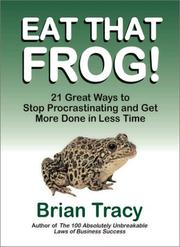
⚡ Quick answerEat That Frog! by Brian Tracy gets 4.5/5 from me. Do the worst task first. That is the book, and it works. Chronic procrastinators who want a simple, memorable fix they can use today.
What is Eat That Frog! about?
Tracy's whole book turns on one image: if the first thing you do each morning is eat a live frog, nothing worse can happen all day. The frog is your biggest, most important and most avoided task, and the advice is to do it first.
Eat That Frog! summary
Tracy takes a single idea, tackle your most important task first thing, and expands it into twenty-one short, practical chapters. The frog is a metaphor borrowed from a Mark Twain line: your frog is the one task you are most likely to put off but that would have the biggest positive impact if you did it.
Around that core, he offers a set of well-worn but useful time-management principles. Plan every day in advance, ideally the night before. Apply the 80-20 rule to focus on the vital few tasks. Consider the long-term consequences of what you do. Break big tasks down, work in focused blocks, and single-handle: start the most important task and stay on it until it is finished.
Each chapter is short and ends with a clear action, which makes the book itself easy to act on. It is not original or deep, but it is a tidy, motivating collection of the fundamentals of getting important things done, aimed at chronic procrastinators.
First published in 2001 and updated since, it became a perennial bestseller on beating procrastination. It is aimed at anyone who puts off important tasks and wants a simple, memorable way to stop.
The one idea worth the price: Identify your biggest, most avoided task and do it first, before anything else has a chance to get in the way.
Key ideas and takeaways
Eat the frog first. Do your most important, most avoided task before anything else.
Plan the day ahead. Decide tonight what tomorrow's frog is.
Apply the 80-20 rule. A few tasks drive most of your results; do those.
Single-handle. Start the key task and stay on it until it is done.
My honest take
Some books earn their place by being deep. This one earns it by being short and immediately usable. The core idea, do the hardest important thing first, is not new, but it is packaged so simply that you can apply it the morning you read it, and that counts for a lot.
For the self-employed, procrastination is expensive, because no one else is going to make you do the awkward sales call or the tax return. Tracy's frog is a memorable, slightly silly hook that changes behaviour. I use the language myself: naming the frog for the day and doing it first is a habit worth building. Do not expect profundity; expect a useful kick.
It is a collection of fundamentals rather than anything you have not heard before, so seasoned productivity readers will find little new. But the brevity is the point: it is the kind of book you can reread in an hour whenever your discipline slips.
The honest caveat: It is basic and unoriginal, a repackaging of standard time-management advice. If you have read widely in the area, you already know most of it.
Where it falls short
Nothing here is new; it is familiar advice, tidily packaged.
Light and motivational rather than deep, so it will feel thin to experienced readers.
How it compares
The One Thing helps you find your single most important task; Eat That Frog gives you the nudge to actually do it first. Read The One Thing to choose the frog and this to eat it.
Who should read it (and who should skip it)
Chronic procrastinators who want a simple, memorable fix they can use today. Skip it if you have already read widely on productivity.
Best format: Audio; it is short and works well as a listen you replay when you are slipping.
How to actually use it if you are self-employed
Each evening, name tomorrow's frog: the one task you are avoiding that matters most.
Do it first thing, before email.
Break a big frog into smaller ones if it feels too large to start.
⚡ The 60-second recap
Do your biggest, most avoided task first.
Plan tomorrow tonight.
Stay on the key task until it is finished.
A book is a shortcut. A second pair of eyes is faster.
Twenty years self-employed, 500+ people coached. If you want help applying this to your own situation, book a free discovery call.
Your biggest, most important and most avoided task, the one that would have the greatest positive impact if you did it.
Is it just one idea?
Largely, yes, expanded into short practical chapters. The simplicity is what makes it easy to apply.
Who is it for?
Chronic procrastinators who want a quick, memorable method rather than a deep system.
Is it worth reading if I know the 80-20 rule?
The value is the memorable frog habit and the brevity, even if the underlying principles are familiar.
How long does it take?
An hour or two. It is deliberately short and easy to revisit.
Final verdict
Eat That Frog! earns 4.5/5. Do the worst task first. That is the book, and it works. If it is the stage you are at, the cheapest way in is a free Audible trial or Kindle Unlimited.
Disclosure: Some links in this article are affiliate links. If you buy through them I may earn a small commission, at no extra cost to you. Star ratings are my own editorial scores.
⚡ Quick answerThe One Thing by Gary Keller & Jay Papasan gets 4.6/5 from me. One focusing question that cuts a long list down to what matters. Anyone whose to-do list feels endless and equally urgent.
What is The One Thing about?
Keller and Papasan argue that success comes from focusing on one thing at a time rather than juggling many. Their focusing question helps you identify the single most important task that makes everything else easier or unnecessary.
The One Thing summary
The book's argument is that extraordinary results come from narrowing your focus, not widening it. Trying to do many things at once spreads your energy thin; putting it all behind one priority is what creates momentum.
The centrepiece is the focusing question: what is the one thing I can do such that by doing it everything else becomes easier or unnecessary? Applied to your life, year, month, day and even the next hour, it forces you to find the single most leveraged action and do that first. The authors debunk common myths, that everything matters equally, that multitasking works, that discipline and willpower are limitless, and argue for time-blocking your one thing early each day before the world crowds in.
It is a simple idea, repeated and applied across different areas, with practical advice on protecting the time to act on it. Like several productivity books, its power is in the discipline of applying one clear question relentlessly.
Published in 2013, it became a bestseller on focus and prioritisation, drawing on Keller's experience building a large business. It is aimed at anyone spread across too many tasks who wants a simple way to prioritise.
The one idea worth the price: Ask what is the one thing I can do such that everything else becomes easier or unnecessary, then do that first.
Key ideas and takeaways
The focusing question. One question that finds your most leveraged action.
Say no to multitasking. Doing many things at once does all of them worse.
Time-block the one thing. Protect time for your priority before the day fills up.
Dominoes. The right one thing knocks over everything behind it.
My honest take
This is the sharpest, simplest focusing tool on the list. Where Essentialism gives you a whole philosophy, The One Thing hands you a single question you can use in the moment, and that question is genuinely useful. Ask it of your week and your day, and the fog of a long to-do list clears fast.
For the self-employed, drowning in tasks that all feel urgent, the discipline of identifying the one action that makes the rest easier is worth a great deal. The idea of time-blocking that one thing first thing, before email and everyone else's priorities arrive, is a simple habit with a big payoff. The book is repetitive, but the core question is one I use constantly.
It covers similar ground to Essentialism and Deep Work, so if you have read those, some will feel familiar. But the focusing question is distinct and portable enough that it earns its place even alongside them.
The honest caveat: It is padded around one idea and strays into life-coaching territory in places. Take the focusing question and the time-blocking habit; skim the rest.
Where it falls short
One strong idea stretched to book length.
Wanders into broader life-advice territory that dilutes the sharp core.
How it compares
Essentialism is the philosophy of doing less; The One Thing is the single practical question that puts it to work each day. Read The One Thing for the tool and Essentialism for the wider discipline.
Who should read it (and who should skip it)
Anyone whose to-do list feels endless and equally urgent. Skip it if you already work from a single clear priority each day.
Best format: Audio or Kindle; the idea is simple enough to absorb in either.
How to actually use it if you are self-employed
Ask the focusing question of your week and pick the single most leveraged task.
Time-block that task first thing tomorrow, before email.
Repeat the question daily until it becomes a habit.
⚡ The 60-second recap
Focus on one leveraged thing, not many.
Time-block it before the day fills.
Multitasking does everything worse.
A book is a shortcut. A second pair of eyes is faster.
Twenty years self-employed, 500+ people coached. If you want help applying this to your own situation, book a free discovery call.
What is the one thing I can do such that by doing it everything else becomes easier or unnecessary?
Is it just about to-do lists?
It is about prioritisation and focus more broadly, applied from your day right up to your life goals.
Who is it for?
Anyone overwhelmed by tasks that all feel equally urgent and wanting a simple way to prioritise.
Is it similar to Essentialism?
Yes, same territory. The One Thing is a sharper single tool; Essentialism is the broader philosophy.
Is it repetitive?
Somewhat. The core question is simple and the book stretches around it, so you can move quickly.
Final verdict
The One Thing earns 4.6/5. One focusing question that cuts a long list down to what matters. If it is the stage you are at, the cheapest way in is a free Audible trial or Kindle Unlimited.
Disclosure: Some links in this article are affiliate links. If you buy through them I may earn a small commission, at no extra cost to you. Star ratings are my own editorial scores.
⚡ Quick answerEssentialism by Greg McKeown gets 4.6/5 from me. The disciplined pursuit of less, for anyone busy and going nowhere. Capable people who are busy, stretched and stuck because they have said yes to too much.
What is Essentialism about?
McKeown argues that we spread ourselves thin trying to do everything, and that the answer is essentialism: the disciplined pursuit of less. By focusing only on what truly matters and cutting the rest, you achieve more of importance.
Essentialism summary
McKeown's premise is that being busy is not the same as being productive, and that trying to do it all leaves you stretched, exhausted and making no real progress. The essentialist takes a different path: do less, but do the right things, and do them well.
He frames it as a discipline with three parts. First, explore and evaluate: consider many options but be highly selective, asking what is truly essential and treating almost everything else as noise. Second, eliminate: cut the non-essential ruthlessly, which means learning to say no gracefully and stop committing out of guilt or habit. Third, execute: build systems and buffers so that doing the essential things becomes easier and more consistent.
A recurring idea is that if it is not a clear yes, it is a no. The book is practical and repeats its message deliberately, aimed at capable people who have said yes to too much and lost focus on what matters.
Published in 2014, it became a bestseller on focus and doing less in an overcommitted world. It is aimed at capable, busy people who have taken on too much and lost sight of what matters.
The one idea worth the price: If it is not a clear yes, it is a no. Do less, but do the right things properly, and stop spreading yourself thin.
Key ideas and takeaways
Less but better. Focus on the vital few, not the trivial many.
The power of no. Saying no to the non-essential protects the essential.
If it is not a clear yes. Ambivalence about a commitment means decline it.
Design for the essential. Build systems and buffers so the right things get done.
My honest take
This is the book for the person who is busy all the time and cannot understand why they are not getting anywhere, which describes a lot of self-employed people. McKeown's argument, that spreading yourself across everything guarantees you do nothing well, is uncomfortable and correct.
The most useful, and hardest, lesson is saying no. When you are self-employed, every opportunity feels like one you cannot afford to turn down, so you say yes to too much and your focus shatters. Essentialism gives you both the permission and the framework to decline, so your energy goes to the few things that actually matter. It repeats itself, but the message is one most of us need drummed in.
It pairs naturally with The One Thing and Four Thousand Weeks, all three circling the same truth from different angles: your power is in focus and subtraction, not in doing more. Of the three, Essentialism is the most complete as a practical philosophy.
The honest caveat: It is repetitive, making the same point in several ways, and light on how to apply it when you genuinely cannot drop obligations. Take the principle and adapt it to real constraints.
Where it falls short
Repetitive, circling one core idea for a whole book.
Easier to preach than to practise when you have obligations you cannot simply cut.
How it compares
The One Thing narrows you to a single priority; Essentialism gives you the broader discipline of cutting everything non-essential. Read Essentialism for the philosophy and The One Thing for the sharp focusing tool.
Who should read it (and who should skip it)
Capable people who are busy, stretched and stuck because they have said yes to too much. Skip it if you already focus ruthlessly on a few priorities.
Best format: Audio or Kindle; the message carries well either way.
How to actually use it if you are self-employed
Apply the clear-yes test to your next three requests and decline the maybes.
Identify the one or two things that matter most and protect time for them.
Practise saying no gracefully to one commitment this week.
⚡ The 60-second recap
Do less, but better.
Say no to protect the essential.
If it is not a clear yes, it is a no.
A book is a shortcut. A second pair of eyes is faster.
Twenty years self-employed, 500+ people coached. If you want help applying this to your own situation, book a free discovery call.
The disciplined pursuit of less: focusing only on what truly matters and cutting the rest, so you do fewer things better.
Is it just about saying no?
Saying no is central, but it also covers how to identify the essential and build systems to protect it.
Who is it for?
Busy, capable people who are stretched thin and not making progress on what matters.
Is it repetitive?
Somewhat, yes. It makes its point in several ways, which reinforces it but can feel padded.
How is it different from The One Thing?
The One Thing narrows you to a single priority; Essentialism is the wider discipline of cutting the non-essential.
Final verdict
Essentialism earns 4.6/5. The disciplined pursuit of less, for anyone busy and going nowhere. If it is the stage you are at, the cheapest way in is a free Audible trial or Kindle Unlimited.
Disclosure: Some links in this article are affiliate links. If you buy through them I may earn a small commission, at no extra cost to you. Star ratings are my own editorial scores.
⚡ Quick answerGetting Things Done by David Allen gets 4.5/5 from me. The original capture-everything system, fiddly to set up but powerful once running. Anyone juggling many commitments who keeps dropping things or feeling overwhelmed.
What is Getting Things Done about?
Allen's GTD system is built on one idea: your mind is for having ideas, not holding them. By capturing every task and commitment into a trusted external system, you free your head and stop things falling through the cracks.
Getting Things Done summary
Allen's core insight is that trying to keep everything in your head is both stressful and unreliable. His system is a method for getting all of it out of your head and into a trusted external setup, so your mind is free to focus rather than nag.
The method has five stages: capture everything that has your attention, clarify what each item actually is and whether it needs action, organise it into the right lists and places, reflect by reviewing regularly, and engage by simply doing. Along the way he introduces well-known ideas: the two-minute rule, do it now if it takes under two minutes; the next-action habit, always define the very next physical step; and the weekly review that keeps the whole system trustworthy.
It is a comprehensive, somewhat fiddly system, and setting it up takes real effort. But the payoff, what Allen calls a mind like water, a calm, clear head because nothing is being held in memory, is real once it is running. Many people adopt parts of it rather than the whole.
First published in 2001 and revised since, it became one of the most influential productivity books ever and spawned a devoted following. It is aimed at anyone overwhelmed by commitments who wants a reliable system to manage them.
The one idea worth the price: Your head is for having ideas, not holding them. Get everything into a trusted system and your mind clears.
Key ideas and takeaways
Capture everything. Get every task and idea out of your head into a trusted system.
Next action. Always define the very next physical step, not a vague goal.
The two-minute rule. If it takes under two minutes, do it now.
The weekly review. Regularly review so the system stays trustworthy.
My honest take
This is the granddaddy of task-management systems, and even if you never adopt the whole thing, a few of its ideas will change how you work. The next-action habit alone, always asking what is the very next physical step, cuts through the vague, stuck feeling of a big to-do list.
For the self-employed, who juggle many clients and commitments with no one else tracking them, the value is real: a trusted system means nothing gets dropped and your head stays clear. The honest catch is that full GTD is fiddly to set up and maintain, and plenty of people bounce off the complexity. My advice is to steal the best bits, capture everything, define next actions, do a weekly review, rather than treat it as all or nothing.
It predates most modern apps, so the specific tools feel dated, but the thinking underneath has aged well and quietly influences almost every task manager you use today. Read it for the principles, then apply them with whatever tools you like.
The honest caveat: The full system is complex and high-maintenance, and many people abandon it. The tool references are dated. Take the core habits rather than forcing the whole method.
Where it falls short
The complete system is fiddly and hard to maintain long term.
Written before modern apps, so the specific tools and examples feel dated.
How it compares
Deep Work is about protecting focus; Getting Things Done is about capturing and organising everything so nothing is lost. Use GTD to clear the decks and Deep Work to spend the cleared time well.
Who should read it (and who should skip it)
Anyone juggling many commitments who keeps dropping things or feeling overwhelmed. Skip it if you already have a task system that works for you.
Best format: Kindle or paper, because you will want to reference the workflow as you set it up.
How to actually use it if you are self-employed
Do a full brain-dump of every task and commitment into one list.
For each item, write the very next physical action.
Book a recurring weekly review to keep the system alive.
⚡ The 60-second recap
Get everything out of your head into a system.
Define the next physical action for everything.
Review weekly to keep it trustworthy.
A book is a shortcut. A second pair of eyes is faster.
Twenty years self-employed, 500+ people coached. If you want help applying this to your own situation, book a free discovery call.
Getting Things Done, the name of David Allen's system for capturing and organising all your commitments.
Is it hard to set up?
The full system takes real effort to set up and maintain. Many people adopt parts of it rather than the whole.
What is the next-action habit?
Always defining the very next physical step for any task, rather than leaving it as a vague goal.
Is it dated?
The tool references are, but the underlying principles have aged well and influence most modern task apps.
Do I need special software?
No. The method works on paper or in any app. It is about the process, not the tool.
Final verdict
Getting Things Done earns 4.5/5. The original capture-everything system, fiddly to set up but powerful once running. If it is the stage you are at, the cheapest way in is a free Audible trial or Kindle Unlimited.
Disclosure: Some links in this article are affiliate links. If you buy through them I may earn a small commission, at no extra cost to you. Star ratings are my own editorial scores.
From 1 February 2027, one of the two doors into YouTube monetisation is 20 million qualified Shorts views in 90 days (the other is 8,000 watch hours). That Shorts number doubled from 10 million. This is the honest, data-backed version: what 20 million in 90 days really takes each day, what it really pays, and the system to get the views, if this is the right route for you at all.
20 million in 90 days, in one line
That is roughly 222,000 qualified views every single day for three months, plus 1,000 subscribers. It is doable for fast, repeatable, high-completion Shorts formats, and brutal for everything else.
Who’s writing this
I’m Alan Spicer, a YouTube Certified Expert with six Silver Play Buttons and 500+ creators coached. I’m not here to sell you a viral fantasy. Shorts can work, but only if you go in with the real numbers, so that’s what you get here.
How do you get 20 million YouTube Shorts views in 90 days?
You need about 222,000 qualified views a day for 90 days. That comes from a repeatable format in a clear niche, a hook in the first two seconds, Shorts built for completion and rewatch, and posting two to four or more a week without a break. Volume plus retention gets you there, not one viral hit.
What 20 million views in 90 days really means
Break the target down before you chase it. Twenty million qualified Shorts views across 90 days is about 222,000 views a day, every day, for three months. How that lands on each Short depends entirely on how often you post.
If you post…
Shorts in 90 days
Avg views each Short needs
1 a day
90
~222,000
2 a day
180
~111,000
3 a day
270
~74,000
5 a day
450
~44,000
Simple averages. In reality a few breakout Shorts carry the total while others underperform, so your best videos need to fly.
That table is the whole reality check. Posting more spreads the load across more videos and gives the algorithm more chances to find a winner, but every Short still has to earn tens of thousands of views on its own merits. This is a volume-and-retention game, sustained for 90 days.
Is it realistic? And what it really pays
⚡ QUICK ANSWER
Is 20 million Shorts views in 90 days realistic?
It is possible but hard: about 222,000 views a day for three months. Fast, repeatable, high-completion niches can reach it, but for most channels 8,000 long-form watch hours is the easier route to monetisation. Treat 20 million as a stretch target, not the default plan.
Be honest with yourself about the pace. Hitting 20 million in 90 days means a format you can produce at volume and that reliably pulls big view counts. Some niches (quick tips, reactions, satisfying visuals, micro-tutorials) can do it. Most channels will reach 8,000 watch hours faster than 20 million Shorts views, and the two routes are not equal in reward.
The part the “go viral” crowd skips
Shorts pay very little directly. At a typical 2026 Shorts RPM of about $0.03–$0.07 per 1,000 views, 20 million views earns roughly $600–$1,400 before tax. That is the payoff for a punishing 90-day sprint. Long-form ad revenue runs many times higher per view. Shorts are a reach engine, not a pay cheque.
So the smart framing is this: chase Shorts views for the audience and subscribers they bring, then convert that reach into long-form watch time and income. More on that in the funnel section below.
What counts as a qualified Shorts view
⚡ QUICK ANSWER
What counts as a qualified Shorts view?
A real, organic view on a public Short that follows YouTube’s policies. Artificial, paid or spammy repeat views do not count, and heavily music-based Shorts can see revenue reduced. Since March 2026, YouTube weights Shorts earnings by engagement, so completed views are worth more than a quick swipe-past.
The word “qualified” matters. Fake, bought or bot views do not count toward the 20 million, and they can get your channel in trouble. What counts is genuine attention on public Shorts that follow the YouTube Partner Program terms. And because YouTube now weights Shorts revenue by engagement, a view someone watches to the end is worth more than a thumb-flick past. Retention is not just a growth lever, it is a pay lever.
How to get 20 million Shorts views in 90 days (the system)
There is no single hack. There is a system you run for 90 days. Here it is.
1Pick one repeatable format in a clear niche
You cannot reinvent the wheel 270 times in 90 days. Lock one topic and one format you can churn out fast, so viewers know what they get and you can produce at volume without burning out.
2Win the first two seconds
Every Short is cold-tested on a small feed audience first. Open on your most striking moment, an on-screen text hook or a bold claim, so people stop scrolling. Lose them in the first two seconds and the Short never gets pushed out.
3Design for completion and rewatch
The algorithm rewards how much of your Short people finish, and how often they rewatch. Keep most Shorts tight, cut every stall, and loop the ending back to the opening so the replay counts as extra watch time.
4Post consistently, two to four or more a week
Volume is half the game at this scale. Each Short does best when you post two to four a week, and stacking more lifts your monthly total and gives the algorithm more chances to find a winner. Pick a pace you can hold for 90 days straight.
5Ride trends and trending audio early
Jumping on a rising trend or sound early rides a wave of existing attention. Add your own angle so it fits your niche rather than copying, and move fast, because trends fade within days.
6Optimise the title keywords and burn in captions
Shorts now appear in YouTube search, so front-load real keywords in the title and use three relevant hashtags. Burn captions into the video, because most people watch on mute and will swipe past silence.
7Track Viewed versus Swiped Away and iterate
In YouTube Studio, the Viewed versus Swiped Away metric shows how often people stop instead of scrolling. Study your flops, fix the hook rather than the whole idea, and repeat what your best Shorts did.
8Funnel the views into subscribers and long-form
Twenty million views mean little on their own. Point viewers to a pinned long-form video or a series, and give them a reason to subscribe, so the reach turns into watch hours and income.
To find rising topics and formats before they peak, I use vidIQ for trend and keyword research, and Syllaby to script and batch Shorts fast so I can hold the pace for 90 days.
Not sure Shorts are your route?
I’ve coached 500+ creators. Bring your channel and I’ll tell you honestly whether 20 million Shorts views or 8,000 watch hours is the faster path for you.
YouTube is unusually open about what its Shorts system watches. Optimise for these and the algorithm does the distribution for you.
Signal
What it measures
Where to see it
Viewed vs Swiped Away
How often people stop to watch instead of scrolling past. The first test every Short faces.
YouTube Studio, next to “Shown in feed”
Average percentage viewed
How much of the Short people finish. Drives both reach and, now, revenue.
Studio → Short → Analytics
Engagement
Likes, comments, shares and subscribes earned per view.
Studio analytics
Rewatches / loops
People replaying the Short, which stacks extra watch time.
Reflected in views and retention
The one to fix first
Viewed vs Swiped Away is the gate. If people scroll past, nothing else happens, no reach, no retention, no revenue. Mute your last ten Shorts and watch only the first two seconds. If you’d swipe past your own, so will everyone else. Fix the hook before anything else, and lean on the retention fundamentals to keep people watching.
Turn the views into what you really want
Here is the trap: you grind out 20 million views, qualify, and then discover Shorts barely pay. The creators who win use Shorts as the top of a funnel, not the destination. Most Shorts views come from people who do not yet subscribe, which makes them the best discovery tool on the platform, if you give viewers somewhere to go next.
Getting in via Shorts is 20 million views in 90 days. Staying paid on Shorts is 10 million qualified views over a rolling 90 days. Drop below and your Shorts revenue pauses while your long-form keeps earning, then resumes automatically when you climb back. Another reason to build long-form alongside, covered in how to get monetised in 2027.
Mistakes that cap your Shorts views
Weak first two seconds. The Short dies in the feed test before it ever spreads.
Reposting watermarked TikToks. YouTube detects them and limits reach. Export clean.
No captions. Most people watch on mute, so silent Shorts get swiped past.
Inconsistent posting. 20 million in 90 days needs a pace you can hold, not a burst then silence.
Chasing one viral hit. Views roll off after 90 days, so a single spike is not enough on its own.
How many views a day is 20 million Shorts views in 90 days?
About 222,000 qualified views every day for 90 days. It is a relentless daily average, which is why consistency and a repeatable format matter more than chasing one viral moment.
Do Shorts views from TikTok or Reels count toward the 20 million?
No. Only qualified views on YouTube Shorts count. You can repurpose the same idea across platforms, but do not upload a Short with a visible TikTok watermark, because YouTube detects it and limits its reach.
How long should a YouTube Short be to get views?
Most creators find the range that works is around 20 to 45 seconds: long enough to deliver a payoff and loop, short enough to hold completion. Test lengths for your niche and watch your average percentage viewed in Studio.
Can you get monetized with only Shorts in 2027?
Yes. The Shorts route is 20 million qualified views in 90 days plus 1,000 subscribers. It is a high-volume path, and Shorts ad revenue is small, so most creators pair it with long-form to earn properly.
Frequently asked questions
How do you get 20 million YouTube Shorts views in 90 days?
You need roughly 222,000 qualified Shorts views every day for 90 days straight. That comes from a repeatable format in a clear niche, a hook in the first two seconds, Shorts built to be watched to the end and rewatched, and consistent posting of two to four or more Shorts a week. Volume plus retention is what gets you there, not one lucky viral hit.
How many Shorts views do you need to get monetized in 2027?
From 1 February 2027, the Shorts route into the YouTube Partner Program needs 20 million qualified Shorts views in the past 90 days, alongside 1,000 subscribers. That is double the old 10 million. Separately, to keep earning from the Shorts Creator Pool each month once you are in, you need 10 million qualified Shorts views over a rolling 90 days.
Is 20 million Shorts views in 90 days realistic?
It is possible but hard. It works out to about 222,000 views a day, every day, for three months. A handful of niches with fast, repeatable, high-completion formats can reach it, but for most channels 8,000 long-form watch hours is the easier route to monetisation. Treat 20 million as a stretch target, not the default plan.
How much do 20 million Shorts views pay?
Not much in direct ad revenue. At a typical 2026 Shorts RPM of about $0.03 to $0.07 per 1,000 views, 20 million views earns roughly $600 to $1,400 before tax. High-value niches with a US-heavy audience can earn more. The real value of Shorts is reach and subscribers that feed your long-form content, where the money is.
What counts as a qualified Shorts view?
A qualified Shorts view is a real, organic view on a public Short that follows YouTube’s policies. Artificial, paid or spammy repeat views do not count, and heavily music-based Shorts can see revenue reduced. Since March 2026, YouTube weights Shorts earnings by engagement, so completed views are worth more than a quick swipe-past.
How many Shorts should I post to hit 20 million views?
It depends on how well each Short performs. At one Short a day you would need about 222,000 views per Short on average. At three a day you need about 74,000 each. Posting more spreads the target across more videos and gives the algorithm more chances to find a winner, but each Short still has to earn its views through a strong hook and high completion.
Do YouTube Shorts views expire?
Yes. The 20 million for Partner Program entry is counted over a rolling 90 days, and the 10 million maintenance figure is also a rolling 90 days. Views older than the window drop off like a conveyor belt. If you reach 15 million but never cross 20 million inside the window, the early views roll off and you climb again.
Are Shorts or watch hours the easier route to monetization in 2027?
For most channels, 8,000 long-form watch hours is easier than 20 million Shorts views in 90 days. Shorts suit fast, repeatable, high-volume formats. If you are not built for that pace, use Shorts to grow reach and subscribers, then bank the 8,000 hours on long-form content, which also pays far better once you are monetised.
The honest bottom line
20 million Shorts views in 90 days is about 222,000 a day, it pays only a few hundred to low four figures directly, and it suits a narrow set of fast, repeatable formats. If that is you, run the system: hook, completion, consistency, trends, optimisation, and a funnel. If it is not, use Shorts for reach and take the 8,000-hour route to monetisation instead. Either way, make the views work for you rather than chasing the number for its own sake.
p style=”font-size:14px;color:#555;”>YouTube Official Blog – Partner Program updates for 2027 (10 August 2026) for the 2027 thresholds and Shorts Creator Pool mechanics; YouTube for Creators and YouTube Help for eligibility, qualified views and Studio metrics. Shorts RPM figures reflect widely reported 2026 creator-earnings ranges and vary by niche and audience location. Programme terms are set by YouTube and can change.
Getting monetised on YouTube changed on 1 February 2027. New creators now need 1,000 subscribers plus either 8,000 watch hours in the last year or 20 million Shorts views in the last 90 days. This is the fast, no-fluff version: the exact requirements, the two rules almost everyone gets wrong, and the step-by-step to switch earning on.
The 2027 rule in one line
1,000 subscribers (a one-time baseline) + 8,000 watch hours in a rolling 365 days, or 20 million Shorts views in a rolling 90 days. Then apply in Studio and accept your terms.
Who’s writing this
I’m Alan Spicer, a YouTube Certified Expert with six Silver Play Buttons and 500+ creators coached. I’ve taken channels through monetisation before and after YouTube moved the goalposts. Here’s the current process, done simply.
From 1 February 2027 you need 1,000 subscribers plus either 8,000 qualified public watch hours in the past 365 days or 20 million qualified Shorts views in the past 90 days. Then enable 2-Step Verification, follow the policies, apply in YouTube Studio, link AdSense and accept your terms.
The 2027 monetisation requirements
Here is the current bar for new applicants to the YouTube Partner Program, straight from YouTube’s announcement.
Requirement
What you need
Subscribers
1,000 total (a one-time baseline)
Watch hours (long-form/live)
8,000 in a rolling 365 days
Shorts route (alternative)
20 million views in a rolling 90 days
Account security
2-Step Verification switched on
Policy standing
No active Community Guidelines strikes
The watch-hours and Shorts numbers both doubled for 2027 (they were 4,000 hours and 10 million Shorts views). If you want the full breakdown of every change, who is grandfathered and the key dates, read the complete guide: YouTube Monetisation Requirements 2027.
Is it 1,000 subscribers a year or 1,000 total?
⚡ QUICK ANSWER
Is it 1,000 subscribers a year or total?
It is 1,000 subscribers total, not per year. Subscribers are a one-time baseline that unlocks the door. Once you pass 1,000 you keep them for this requirement. Only your watch hours and Shorts views roll and can drop off.
This trips people up constantly. The 1,000 subscribers are not a yearly quota. Think of them as a padlock: you open it once and it stays open. A quiet month will not knock you back below the line for the requirement. The parts that move are the viewing thresholds, which is where the next two questions matter.
If subscribers are your current gap, the fastest fix is a clear channel promise people want to follow. I break down exactly how in how to get your first 1,000 subscribers.
Do your watch hours expire?
⚡ QUICK ANSWER
Do YouTube watch hours expire?
Yes. The 8,000-hour requirement is measured over a rolling 365 days. Hours older than a year drop off. If a viral video earned 6,000 hours and you posted nothing for the next 12 months, those hours fall away and your count resets toward zero. Steady uploads keep it topped up.
The cliff nobody warns you about
Watch hours are not banked forever. The counter only ever looks at the last 365 days. Say one video pops and lands you 6,000 hours, then the channel goes quiet for a year. At the 12-month mark those hours fall off a cliff and vanish. You were nearly there, and now you are back near zero.
The lesson: monetisation rewards consistency, not one lucky spike. Keep publishing so fresh watch hours keep flowing in faster than old ones drop out. If you are not sure what counts, what YouTube watch time is explains it, and how to get more watch time is how you build more of it per upload.
Do Shorts views expire too?
⚡ QUICK ANSWER
Do YouTube Shorts views expire?
Yes. The 20 million Shorts views for Partner Program entry are counted over a rolling 90 days. If you reach 15 million but never cross 20 million inside that window, the earlier views roll off like a conveyor belt and you climb again. You have to hit the threshold within the window, not just in total.
Shorts work the same way, on a shorter clock. The 20 million entry views are measured across a rolling 90 days. Picture a conveyor belt: views drop on at one end and fall off the other after 90 days. Reach 15 million but never tip over 20 million inside the window and the early views roll off before you get there. For how the Shorts side pays once you are in, see can YouTube Shorts be monetised.
How to get monetised on YouTube in 2027 (step by step)
Once you understand the rolling rules, the process itself is a checklist. Here is the full path.
1Pick a niche and stick to it
Choose one clear topic so viewers know what they get every time. Consistency builds a returning audience, and a returning audience is what stacks watch hours. Wander off-topic and most of your viewers drift away.
2Reach 1,000 subscribers
This is a one-time baseline, not a yearly target. Once you pass 1,000 subscribers that box stays ticked. A focused niche and a clear channel promise get you there fastest.
3Build 8,000 watch hours in a rolling 365 days
This is the new bar from 1 February 2027, double the old 4,000. It is measured over the past year, so keep uploading to keep the number topped up. Prefer the Shorts route? Aim for 20 million qualified Shorts views in 90 days instead.
4Turn on 2-Step Verification
You cannot join the Partner Program without 2-Step Verification enabled on the Google Account that owns the channel. Set it up early so it is not a last-minute blocker.
5Stay inside the monetisation policies
You need no active Community Guidelines strikes and content that follows the advertiser-friendly guidelines. Clear any copyright or policy issues before you apply.
6Apply in YouTube Studio
Open the Earn tab in YouTube Studio and apply once you meet the thresholds. Studio shows your live progress toward each target so you know when you qualify.
7Link or create an AdSense account
Ad payments run through AdSense. Connect an existing account or create one during the application, and complete your tax and payment details so you get paid.
8Get reviewed, then accept your terms
Review usually takes around a month. Once approved, sign the monetisation modules in Studio to switch earning on and keep it on.
The single biggest lever on watch hours is a returning audience, and the fastest way to build one is a clear niche. When people know what your channel is about, they come back, and every return visit stacks more watch time toward your 8,000 hours.
Pick a topic and set the expectation. My channel is business and YouTube, so every time my face shows up you know what you are getting. That reliability keeps people subscribed and watching. Start posting about skydiving, eating cheese and licking cats and maybe 20% of the audience stays (loving the cat content, admittedly) while the rest drift off. Consistency is what compounds.
Niche = reliability = watch hours
A clear niche tells viewers what to expect and tells you what to make. That loop builds a returning audience, and returning viewers are the most reliable source of watch time on the platform.
Thinking subscribers reset every year. They do not. 1,000 is a one-time baseline.
Chasing one viral hit. A single spike ages out of the rolling window. Consistency beats luck.
Going off-topic. Wandering niches lose the returning audience that builds watch hours.
Only making short clips. They are the slowest way to reach 8,000 hours. Mix in longer content (grow your channel faster).
Leaving 2-Step Verification and policy checks to the end. They block applications at the finish line.
People also ask
Is 1,000 subscribers a one-time requirement?
Yes. Subscribers are a one-time baseline for the Partner Program. You cross 1,000 once and that part is done, so a slow month will not undo it. Only your rolling watch hours and Shorts views can fall away.
What happens to my watch hours after 12 months?
Any watch hours earned more than 365 days ago stop counting toward the 8,000-hour requirement. The window is always the last 12 months, so a single old spike is not enough on its own. Regular uploads keep fresh hours flowing in.
Do subscribers reset if you stop uploading?
No. Your subscriber count is not reset for the monetisation requirement if you take a break. Your rolling watch hours and Shorts views can drop, but the 1,000-subscriber baseline stays met once you have passed it.
What counts toward the 8,000 watch hours?
Public watch time on your long-form videos and live streams over the past 365 days. Private and unlisted videos, deleted videos and paid traffic do not count. Shorts are measured separately through the Shorts views threshold.
Frequently asked questions
How do you get monetized on YouTube in 2027?
To join the YouTube Partner Program from 1 February 2027 you need 1,000 subscribers plus either 8,000 qualified public watch hours in the past 365 days or 20 million qualified Shorts views in the past 90 days. Then turn on 2-Step Verification, follow the monetisation policies, apply in YouTube Studio, link AdSense, and accept your terms once approved.
Is it 1,000 subscribers a year or 1,000 subscribers total?
It is 1,000 subscribers total, not per year. Subscribers are a one-time baseline that unlocks the door, like a padlock you open once. Once you pass 1,000 you keep them for this requirement. It is the watch hours and Shorts views that roll and can drop off, not your subscriber count.
Do YouTube watch hours expire?
Yes. The 8,000-hour requirement is measured over a rolling 365 days. Watch hours older than a year drop off the total. If a viral video earned 6,000 hours and you posted nothing for the next 12 months, those hours fall away and your count resets toward zero. Steady uploads keep the number topped up.
Do YouTube Shorts views expire too?
Yes. The 20 million Shorts views for Partner Program entry are counted over a rolling 90 days. If you reach 15 million but never cross 20 million inside that window, the earlier views roll off like a conveyor belt and you start climbing again. You need to hit the threshold within the window, not just in total.
How many watch hours do you need to get monetized in 2027?
You need 8,000 qualified public watch hours across the previous 365 days, alongside 1,000 subscribers. That is double the old 4,000-hour rule, which applied until 31 January 2027. If you would rather qualify through Shorts, the alternative is 20 million qualified Shorts views in 90 days.
Can you get monetized on YouTube with only Shorts in 2027?
Yes. New creators can qualify for the Partner Program with 20 million qualified Shorts views in 90 days instead of 8,000 watch hours. It is a high-volume route. Separately, earning from the Shorts Creator Pool each month needs 10 million qualified Shorts views over a rolling 90 days once you are in.
How long does it take to get monetized on YouTube in 2027?
It depends on your format and consistency. A niche channel posting two solid long-form videos a week can reach 1,000 subscribers and 8,000 hours inside a year. Longer content like shows and podcasts gets there faster because each view banks more watch time. The application review itself usually takes around a month.
Does the 8,000 hours rule affect channels that are already monetized?
No. The change applies to new applicants only. If your channel is already in the Partner Program you keep your status and keep earning. You will be asked to accept updated terms in YouTube Studio, which you should do before 1 February 2027 so your earnings do not pause.
The short version
1,000 subscribers is a one-time baseline you unlock once. 8,000 watch hours (or 20 million Shorts views) is a rolling target you have to keep feeding. Pick a niche, stay consistent, and the numbers build on their own. Sort your 2-Step Verification and policies early, apply in Studio, and accept your terms the moment you are approved.
⚡ Quick answerADHD 2.0 by Edward M. Hallowell & John J. Ratey gets 4.5/5 from me. A clear, compassionate guide to a brain that works differently. People with ADHD, or who suspect it, and those close to them, especially the many self-employed who work differently.
What is ADHD 2.0 about?
Hallowell and Ratey, both psychiatrists who have ADHD themselves, give an up-to-date, compassionate account of how the ADHD brain works and practical strategies for managing it, drawing on recent research and their own experience.
ADHD 2.0 summary
The book reframes ADHD not as a simple deficit but as a different way the brain is wired, with real challenges and genuine strengths. The authors, who both have ADHD, write with warmth and first-hand understanding rather than clinical distance.
They explain the current science, including the roles of two brain networks and how they can misfire in ADHD, and introduce ideas like the negativity and harsh self-criticism that often come with it. The bulk of the book is practical: strategies around exercise, sleep, nutrition, structure and environment, the value of the right kind of stimulation, medication and when it helps, and building a life and work setup that plays to ADHD strengths rather than fighting them.
It is short, readable and non-judgemental, aimed at people with ADHD and those close to them. For the many self-employed people who work differently, it offers both explanation and a toolkit.
Published in 2021, it is an updated take on ADHD from two long-standing experts in the field who have the condition themselves. It is aimed at adults with ADHD and the people around them who want understanding and practical help.
The one idea worth the price: ADHD is a different wiring, not a character flaw. Build your work and life around how your brain actually works, rather than fighting it.
Key ideas and takeaways
Difference, not deficit. ADHD brings genuine strengths alongside real challenges.
Structure helps. External systems and environment do the work willpower cannot.
Body affects brain. Exercise, sleep and nutrition matter more than most realise.
Play to strengths. Design work that suits your wiring rather than fighting it.
My honest take
This is not a business book, but it earns its place because so many self-employed people work differently, and this explains why with compassion rather than judgement. Written by two psychiatrists who have ADHD themselves, it avoids both the doom and the hype and simply helps you understand your own wiring.
The practical strategies are the valuable part, and many suit the self-employed well: building external structure, using the right environment, leaning into the kind of stimulating work that ADHD brains do brilliantly. If you have ever wondered why standard productivity advice does not work for you, this is a gentle, useful place to start. Worth saying plainly: it is a guide, not a diagnosis, and a qualified professional is the person for that.
What sets it apart is the tone. It is hopeful without being naive, honest about the difficulties without being bleak, and it treats the reader as capable rather than broken. For anyone recently making sense of how their brain works, that matters.
The honest caveat: It is an accessible overview rather than a deep clinical text, so specialists or those wanting depth may find it light. It informs, but it is no substitute for a professional assessment.
Where it falls short
Accessible rather than in-depth, so it may feel light to those wanting the full science.
As a general guide, it is no replacement for a proper professional assessment.
How it compares
Where most productivity books assume a neurotypical brain, ADHD 2.0 is written for one that works differently. Pair it with Atomic Habits, using its systems in the ADHD-friendly ways this book suggests.
Who should read it (and who should skip it)
People with ADHD, or who suspect it, and those close to them, especially the many self-employed who work differently. Skip it if you want a deep clinical text rather than a practical guide.
Best format: Audio or Kindle; it is short and accessible in any format.
How to actually use it if you are self-employed
Build one external structure, a list, alarm or routine, to carry what willpower does not.
Add regular exercise, which the book links strongly to focus.
Design your work around stimulating tasks you naturally engage with.
⚡ The 60-second recap
ADHD is different wiring, with strengths as well as struggles.
Use structure and environment to do what willpower cannot.
Look after the body to help the brain.
A book is a shortcut. A second pair of eyes is faster.
Twenty years self-employed, 500+ people coached. If you want help applying this to your own situation, book a free discovery call.
Neither exactly, but its strategies are highly relevant to the many self-employed people who have ADHD or work differently.
Who wrote it?
Two psychiatrists, Hallowell and Ratey, who both have ADHD themselves, which gives it first-hand understanding.
Can it diagnose me?
No. It helps you understand and manage ADHD, but a proper diagnosis needs a qualified professional.
Is it up to date?
Yes, it reflects more recent research than the authors' earlier work.
Is it useful for partners or family?
Yes. It is written to help both people with ADHD and those close to them.
Final verdict
ADHD 2.0 earns 4.5/5. A clear, compassionate guide to a brain that works differently. If it is the stage you are at, the cheapest way in is a free Audible trial or Kindle Unlimited.
Disclosure: Some links in this article are affiliate links. If you buy through them I may earn a small commission, at no extra cost to you. Star ratings are my own editorial scores.
⚡ Quick answerFour Thousand Weeks by Oliver Burkeman gets 4.5/5 from me. The anti-productivity productivity book, and it is oddly freeing. Anyone overwhelmed by an endless to-do list and a sense of being behind.
What is Four Thousand Weeks about?
Burkeman confronts the uncomfortable fact that a human life is only about four thousand weeks long, and argues that most productivity advice makes us miserable by pretending we can do it all. The answer is to choose what matters and let the rest go.
Four Thousand Weeks summary
Burkeman starts from a blunt calculation: live to eighty and you get roughly four thousand weeks. From there he dismantles the modern obsession with productivity and time management, arguing it is built on a false promise, that if you are just efficient enough, you will finally get on top of everything and earn the right to relax.
You never will, he says, because the to-do list is infinite and the more efficient you become, the more you take on. The real problem is not time management but our refusal to accept our limits. His answer is a kind of liberation through acceptance: you cannot do everything, so the task is to choose consciously what matters, make peace with neglecting the rest, and actually live in the finite time you have rather than treating the present as a stepping stone to some future when you are finally sorted.
It is more philosophy than method, thoughtful and a little melancholy, but ultimately freeing. It gives you permission to stop chasing an impossible standard.
Published in 2021, it became a bestseller for pushing back against hustle culture and productivity obsession. It is aimed at people worn down by the pressure to do everything and optimise every hour.
The one idea worth the price: You will never get on top of everything, and accepting that is the point. Choose what matters and let the rest go, on purpose.
Key ideas and takeaways
Life is finite. About four thousand weeks, which changes how you should spend them.
The efficiency trap. Getting more done just makes room for more to do.
Choose and neglect. You must consciously decide what matters and let the rest go.
Live now. Stop treating the present as a stepping stone to a sorted future.
My honest take
This is the book that gave me permission to stop feeling guilty about an unfinished to-do list, and that turned out to be more useful than any productivity hack. Burkeman's insight, that you will never get to the bottom of everything, sounds bleak but lands as a relief.
For the self-employed, who tend to carry an endless list and a nagging sense of being behind, it is genuinely valuable. Once you accept you cannot do it all, the real question becomes which few things actually matter, and that is a far healthier place to work from than the impossible dream of getting on top of everything. It is a productivity book that quietly argues against the whole genre, and it is better for it.
It is more meditation than manual, so if you want a system you will finish it thoughtful rather than equipped. But paired with a practical book, it provides the wisdom that stops you using productivity as another way to punish yourself.
The honest caveat: It is philosophical rather than practical, so it will not hand you a system or a method. If you want concrete steps, pair it with something tactical.
Where it falls short
Light on practical method; it reframes rather than instructs.
The reflective, philosophical tone will not suit readers wanting an upbeat how-to.
How it compares
Deep Work helps you do your chosen work with full focus; Four Thousand Weeks helps you choose what is worth doing at all. Read Burkeman for the why and Newport for the how.
Who should read it (and who should skip it)
Anyone overwhelmed by an endless to-do list and a sense of being behind. Skip it if you want a concrete productivity system rather than a reframe.
Best format: Audio or Kindle; it is reflective and reads well either way.
How to actually use it if you are self-employed
Accept you cannot do it all, and choose the few things that genuinely matter.
Cut something from your list on purpose and stop feeling guilty about it.
Protect time for what matters now, not only for future goals.
⚡ The 60-second recap
Your time is finite; spend it deliberately.
You cannot do everything, so choose.
Live now rather than deferring life.
A book is a shortcut. A second pair of eyes is faster.
Twenty years self-employed, 500+ people coached. If you want help applying this to your own situation, book a free discovery call.
Almost the opposite. It argues against the productivity obsession and for accepting your limits, which is oddly freeing.
Is it practical?
More philosophical than practical. It reframes how you think about time rather than giving a system.
Why the title?
A human life of about eighty years is roughly four thousand weeks, a number meant to focus the mind.
Is it depressing?
It confronts mortality, but most readers find it freeing rather than bleak.
What should I pair it with?
A practical book like Deep Work or Essentialism, which supply the method to its wisdom.
Final verdict
Four Thousand Weeks earns 4.5/5. The anti-productivity productivity book, and it is oddly freeing. If it is the stage you are at, the cheapest way in is a free Audible trial or Kindle Unlimited.
Disclosure: Some links in this article are affiliate links. If you buy through them I may earn a small commission, at no extra cost to you. Star ratings are my own editorial scores.
For years the advice was simple: hit 1,000 subscribers and 4,000 watch hours, and you are in the YouTube Partner Program. That number just doubled. From 1 February 2027, new creators need 8,000 qualified watch hours or 20 million Shorts views to unlock ad and Premium revenue. Here is precisely what changed, who it hits, who is safe, and the exact playbook I use to reach 8,000 hours without waiting years.
The headline in one line
New applicants now need 1,000 subscribers plus 8,000 watch hours (or 20 million Shorts views). Existing partners are safe. The bar for getting in has doubled, so the way you plan your content matters more than it ever has.
Why listen to me on this
I am a YouTube Certified Expert with 20+ years working online, six Silver Play Buttons across the channels I have built, and 500+ creators coached one-to-one. I have watched YouTube move the monetisation goalposts before, in 2018, and helped people get through it. This is the same drill with bigger numbers, and there is a clear way through it.
What are the YouTube monetisation requirements for 2027?
From 1 February 2027, new creators need 1,000 subscribers plus either 8,000 qualified watch hours in the past 365 days or 20 million qualified Shorts views in the past 90 days to join the YouTube Partner Program for ad and Premium revenue. Existing partners keep their current thresholds.
What is changing in 2027
On 10 August 2026, YouTube announced the first significant change to Partner Program entry since 2018. From 1 February 2027, the viewing side of the entry test doubles. You still need 1,000 subscribers. What changes is everything that sits next to that number.
Watch hours doubled: new applicants need 8,000 qualified watch hours in the last 365 days, up from 4,000.
Shorts entry doubled: the Shorts route to the Partner Program rises from 10 million to 20 million qualified views in 90 days.
Existing partners untouched: if you are already in, your status and earning do not change.
Shorts revenue decoupled: a rolling 10 million qualified Shorts views over 90 days is now needed to earn from the Shorts Creator Pool each month.
Premium Lite everywhere: the cheaper ad-free tier is rolling out to every country where Premium is sold, which adds a new subscription income stream.
New incentive programmes: Shopping bonuses, brand-deal incentives and rewards for starting and growing trends, aimed at smaller channels.
The truth nobody wants to say out loud
If you are sitting on 3,000 hours today and coasting, you were nearly there under the old rules. On 1 February 2027 you are only halfway. The channels that get hurt are the ones drifting toward 4,000 with no plan for what comes after. The fix is not working twice as hard. It is making content that earns watch time faster per upload.
Old rules vs new rules, side by side
Requirement
Until 31 Jan 2027
From 1 Feb 2027
Subscribers
1,000
1,000 (unchanged)
Watch hours (long-form/live)
4,000 in 365 days
8,000 in 365 days
Shorts route (alternative)
10 million views in 90 days
20 million views in 90 days
Shorts Creator Pool earnings
Part of standard YPP
10 million qualified Shorts views in trailing 90 days
Fan Funding & Shopping tier
500 subscribers
500 subscribers (unchanged)
Existing partners
Monetised
Still monetised, accept new terms
Source: YouTube Official Blog (10 August 2026). Subscriber and lower-tier figures per YouTube Help.
The dates that matter
Date
What happens
10 Aug 2026
Changes announced. The old 4,000-hour rule still applies for now.
Now → 31 Jan 2027
The window. Apply under the old 4,000-hour bar if you can reach it in time.
1 Feb 2027
New 8,000-hour / 20M-Shorts entry thresholds take effect. Updated terms apply.
The window is real, use it
Anyone assessed before 1 February 2027 is measured against 4,000 hours. If you are close, this is the moment to push. A short, focused sprint now could get you in at the lower bar and lock in your partner status for good. Not sure where you stand? Book a discovery call and I will map it with you.
Are you grandfathered? Who is affected and who is safe
This is where most of the panic online is misplaced. The change is an entry change. It targets new applicants, not people already earning. Here is the plain version.
Your situation
What 2027 means for you
Already in the Partner Program
Safe. Your status and earning are not affected. Accept the updated terms in Studio to keep earning without a gap.
Applied and accepted before 1 Feb 2027
Safe. You are assessed under the old 4,000-hour rule and grandfathered in.
Under 4,000 hours, no plan
Most exposed. On 1 Feb you are chasing 8,000, so you need a content plan that builds hours faster.
Brand new channel
Plan for 8,000 from day one. The good news: shows, podcasts and courses make that very doable.
A quick word on the fear that you can “lose” monetisation if your hours dip. Once you are a partner, a temporary drop does not eject you. YouTube keeps existing partners in the programme and gives inactive channels an extended window to become active again rather than cutting them off. The message is the same one it has always been: keep uploading, keep your public watch time healthy, and you stay in.
What counts as a qualified watch hour
YouTube’s wording changed from “valid public” to “qualified” watch hours and views. The idea is the same, and it matters because not all watch time is counted. Get this wrong and your Studio number looks lower than you expected.
Counts toward 8,000 hours
Does not count
Public long-form videos
Private or unlisted videos
Public live streams and premieres
Deleted videos (their hours vanish with them)
Watch time from any organic source (search, suggested, external)
Paid ads and other non-organic promotion
Long-form watch time on the last 365 days
Shorts watch time (measured by the separate views threshold)
Two practical takeaways. First, keep videos public and keep them up, even weak ones, because deleting a video deletes its watch hours from your total. Second, the 8,000-hour figure is a rolling 365-day window, so hours you built more than a year ago drop off. That is another reason a steady stream of longer content beats one old viral spike. If you want the fundamentals, what YouTube watch time is covers what watch time is and why it drives everything.
Already monetised? Your 1 February 2027 checklist
If you are already in the Partner Program, the entry change does not touch you, but there is still admin to do so your earning does not pause. Run through this before 1 February 2027.
Accept the updated terms in Studio. New monetisation modules appear in YouTube Studio ahead of 1 February 2027. Sign them. If nobody logs in and accepts, earning can stop, so do not leave it.
Check your Shorts position. If Shorts are a real income line, make sure you are holding 10 million qualified views over the trailing 90 days. Below that, long-form keeps paying and Shorts pay resumes automatically when you climb back.
Look at Premium Lite. With Premium Lite rolling out to more countries, a chunk of your audience may shift from ads to subscription. That can raise earnings per viewer, so it is a reason to keep making the long watchable content Premium members favour.
Keep the channel active. Inactive channels get an extended window to requalify rather than an instant cut, but the simplest insurance is to keep uploading.
If you are close to 4,000 right now
You have a genuine advantage over anyone starting after 1 February. Sprinting to 4,000 before the deadline gets you assessed under the old rule and grandfathers you in permanently. The next section is the exact plan I would run.
Why YouTube is doing this
YouTube framed this as keeping the Partner Program the leader in the creator economy while rewarding active creators. The scale numbers behind it are the real story. YouTube now reports over 3 million creators in the programme, over 200 billion daily Shorts views, and more than a billion hours of watch time on TV screens every day. When that many people are watching, the old 4,000-hour bar stops separating serious channels from noise.
Notably, YouTube says it expects to pay creators more in 2027 than in 2026, not less. Read alongside the new Premium Lite revenue and the incentive programmes, the direction is clear: harder to get in on ads alone, but more ways to earn once you are building an audience. That is worth planning around rather than panicking over.
There is a bigger shift underneath it. Most YouTube viewing now happens on television screens, and the platform has been moving to behave like a premium TV service, signing marquee shows and adding seasons for creator channels. In that world a two-minute clip is filler and a proper show is programming. Doubling the watch-hours bar nudges creators toward the longer, session-based content that suits the living-room screen. If you build for that shift now, the rule change works in your favour rather than against you.
Every 2027 change, not just the watch hours
The 8,000-hour headline is one of three moves. If you only read that number you miss the parts that can make you money sooner.
1. Premium Lite revenue, in every country
Premium Lite, the cheaper ad-free tier, is expanding to every country where YouTube Premium is sold. Creators earn from a dedicated pool: YouTube allocates 30% of net Premium subscription revenue and 60% of Premium Lite, distributed by member watch time and views, with creators taking 55% on long-form and 45% on Shorts. In plain terms, when a viewer subscribes instead of watching ads, you can earn more from that viewer, not less.
2. Shorts revenue is now its own game
From 1 February 2027, earning from the Shorts Creator Pool each month needs a rolling 10 million qualified Shorts views over the trailing 90 days. Fall below that and you stay in the Partner Program, keep earning on long-form, and Shorts revenue resumes automatically once you cross back over. If Shorts are your thing, read can YouTube Shorts be monetised for how the pool works in practice.
3. New incentive programmes for smaller channels
For channels below the Shorts threshold, YouTube is adding ways to earn tied to milestones: bonuses for YouTube Shopping, incentives for brand deals, and earnings boosts for starting and growing trends. Details are still coming, but the intent is to reward growth and engagement rather than making ad revenue the only door. Fan Funding and Shopping entry thresholds are unchanged at 500 subscribers.
How you get paid in 2027
Watch hours get you through the door. Once inside, your income is not one number, it is a stack. Understanding the stack matters, because the 2027 changes add to it rather than shrink it. Here are the streams a monetised channel can earn from.
Income stream
How it works
Your share
Long-form ads
Ads shown on your standard videos
55% of ad revenue to you
YouTube Premium
A slice of subscriber fees based on what members watch of your content
From a pool of ~30% of net Premium revenue
Premium Lite (new reach)
The cheaper ad-free tier, now rolling out to every Premium country
From a pool of ~60% of Premium Lite revenue
Shorts Creator Pool
Shorts ad revenue shared by views, if you hold 10M qualified views/90 days
45% creator share on Shorts
Fan Funding & Shopping
Memberships, Super Thanks, Super Chat and product tagging
Revenue-pool figures per YouTube’s announcement. Ad and membership shares reflect YouTube’s long-standing splits.
The practical read: when a viewer pays for Premium or Premium Lite instead of watching ads, you can earn more from that viewer, not less, and the long, watchable content that builds your 8,000 hours is exactly the content Premium members favour. The same shows and podcasts that get you monetised are the ones that pay best once you are in. That is why the plan below is not just about passing a threshold, it is how the channel earns for years.
How to get 8,000 watch hours (the real playbook)
⚡ QUICK ANSWER
How do I get 8,000 watch hours fast?
Make longer content people watch to the end and come back to. The quickest routes are shows, podcasts and courses, plus repeat-view content like guided routines. Watch hours are length multiplied by retention multiplied by views, so one hour-long video watched by 100 people is 100 watch hours.
Watch time is not luck. It is maths. One viewer watching a five-minute video gives you five minutes. One viewer watching a one-hour video gives you an hour. Get 100 people watching that hour and you have banked 100 watch hours from a single upload. Length, retention and views are the three dials, and you control all three.
The watch-hours equation
Watch hours = views × average view duration ÷ 60. A two-minute how-to needs thousands of views to move the needle. A 25-minute video watched halfway through by a few hundred people quietly stacks hours every week. This is why short one-off clips feel like running uphill.
To make that concrete, here is what different formats do to your counter. Same channel, same 250 views per video, different length and retention. Watch how fast the hours diverge.
Format
Length
Avg viewed
Hours per video
Hours/month at 8 videos
Two-minute clip
2 min
60%
~5 hrs
~40 hrs
Standard how-to
10 min
45%
~19 hrs
~150 hrs
Show episode
18 min
50%
~38 hrs
~300 hrs
Podcast episode
45 min
40%
~75 hrs
~600 hrs
Illustrative maths (views × average view duration ÷ 60). Your real numbers will differ, which is what the calculator below is for.
The clip channel needs roughly 200 uploads to reach 8,000 hours in a year. The podcast channel gets there in about three to four months on the same view count. That is the whole argument for longer formats in one table.
There are three formats that only really matured in the last couple of years, and each one is built to hold attention for longer. Shows, podcasts and courses. Here is how to use them.
Shows: a playlist people feel they have to finish
A show is a themed, multi-episode playlist with its own artwork, its own place on your channel, and a clear narrative order. The magic is psychological: when people know there is a story arc, they work through the whole thing. Ten 12-minute episodes watched end to end is a lot of watch time from one committed viewer.
Shows come in shapes. A finite arc: buy a car, renovate it, thrash it round a track, sell it. A set-day format: a live stream every Monday, or a weekly review. A season: one video a week for three months, then a break. Pick a promise people want to see resolved and build the playlist around it. My deeper guide on this is here: YouTube series strategy, and for the structure that keeps people bingeing, how to structure playlists for maximum watch time.
Quick sum: a 10-episode show at 15 minutes an episode is 150 minutes of content. One committed viewer who watches the lot gives you 2.5 hours. Get 500 people through the playlist over its life and that single show is 1,250 watch hours, roughly a sixth of the way to 8,000 from one idea.
Podcasts: long sessions people leave running
A podcast on YouTube can be audio or video, gets its own artwork, and can play back to back like a continuous feed. The point for watch time is duration: a 45-minute episode that someone half-listens to while cooking still logs serious watch time, and people return to episodes over days. It is one of the most efficient formats for stacking hours because the sessions are long by nature.
A course is a series that teaches one skill across multiple lessons: learn to trade, pass a driving theory test, knit your first jumper. Instead of one two-minute how-to, you build twenty lessons that add up to a complete result. Each lesson is a brick; the finished course is the castle. Learners work through them in sequence, which is exactly the ordered, long-session watching the algorithm and the watch-hours counter both reward. Start here: how to create online courses, then use YouTube for online course creators to fill it with the right people.
Courses also age well. A “driving theory test 2027” course gets found and watched all year by people with a real reason to finish it. That combination, high intent plus a sequence to complete, is about the most reliable watch-time machine on the platform.
Retention and repeat views: the multiplier
Length only pays if people stay. Retention is the multiplier on every one of the formats above. If one person watches a five-minute guided meditation over and over, ten replays is 50 minutes of watch time from a single viewer. Content people return to, a morning routine, a warm-up, a breathing exercise, a reference tutorial, compounds in a way one-off content never does.
Length and retention are half the equation. The other half is views, and views are won or lost on packaging before anyone presses play. A brilliant 20-minute video nobody clicks earns zero watch hours. So treat your title and thumbnail as the product and the video as the delivery.
Three things move views the most. A title that promises a clear, specific payoff. A thumbnail that reads in half a second on a phone and again on a TV. And a topic people are already searching for or that the suggested feed can match to an existing audience. Research the demand first, then make the video, not the other way round. This is where a tool earns its keep: I use vidIQ to see what my audience is searching and which angles are underserved before I commit a day to filming.
Do not forget the videos you already have. Every upload in your back catalogue is still capable of earning watch hours today. Refresh weak titles and thumbnails on your best older content, add them to the right playlists, and point new viewers at them with end screens. A tidy back catalogue quietly drips watch time for years, and how to get more watch time on YouTube walks through the specific moves.
Turn one idea into many videos
The creators who reach 8,000 hours without burning out do not make more decisions, they make one idea go further. Film one long, substantial video, a show episode or a podcast, and it becomes the spine for everything else that week. Cut three or four Shorts from the best moments to pull new viewers in. Pull the key section into a standalone how-to. Write it up as a blog post to catch search traffic and feed people back to the video.
That system does two jobs. It fills your upload schedule from a single recording session, and it points multiple entry points at the same long-form content that banks your hours. Syllaby helps turn one idea into a week of content quickly, and if you run live formats, StreamYard lets you record a show and repurpose it in one go. Work this way and consistency stops depending on motivation.
The vlog or narrative arc: bring people along
Here is a shortcut I used myself. I built a second channel from scratch about 18 months ago in the weight-loss space. Honest, week-to-week videos, some three minutes, some thirteen. It crossed the old monetisation threshold in three to four months, because people were not watching one video, they were following a story. You cannot lose seven stone in a week, so viewers came back as cheerleaders, week after week. That returning audience is watch time on tap.
Ask yourself what narrative you can run. Training for a marathon. Becoming a nurse. Building a business. Restoring something. A story people want to see finished turns casual viewers into a returning audience, and a returning audience is the single most reliable way to build watch hours.
The content mix: Help, Hub, Hero
Once you know the formats, you need a mix that keeps the channel healthy. The framework I come back to every time is Help, Hub and Hero content, searchable how-to videos that pull new viewers, regular hub content that keeps your core audience returning, and occasional hero pieces that spike reach. I walk through the whole thing in 3 types of content your channel needs to grow. Layer shows, podcasts and courses on top of that mix and 8,000 hours stops feeling like a wall.
A 90-day sprint to build watch hours
Plans beat panic. If you want a concrete route from wherever you are now toward 8,000 hours, this is the shape I would give a client. Adjust the numbers to your niche, but keep the structure.
Phase
Focus
What you ship
Days 1–7: Pick the spine
Choose one show, podcast or course concept with a clear promise and an obvious order.
A titled playlist, artwork, and a list of 10–12 planned episodes.
Days 8–30: Build the engine
Batch-film. Aim for length with retention, not perfection. Strong first 30 seconds every time.
4–6 episodes live, released on a fixed day so people expect them.
Days 31–60: Stack and link
Keep the cadence. Link episodes end to end. Add one repeat-view asset (a routine, a reference guide).
Full playlist bingeable start to finish; end screens pointing to the next episode.
Days 61–90: Amplify
Cut Shorts from your best moments to pull new viewers into the long-form. Refresh titles and thumbnails on early episodes.
Shorts feeding the playlist; rising average view duration; a returning audience.
Ninety days of this does two things at once: it builds the watch hours, and it builds the habit and the back catalogue that keep hours coming after the sprint ends. Run it twice back to back and 8,000 stops being theoretical. If live formats suit you, using 24/7 live streams to build watch time is a fast way to stack long sessions.
Put it together
Longer formats (shows, podcasts, courses) + high retention + content people replay = watch hours that compound instead of trickle. That is the difference between reaching 8,000 in months and grinding at it for years.
8,000 Watch Hours Calculator
Plug in your real numbers and see how long 8,000 hours takes at your current pace. Change the video length, views and retention to test what a show or podcast would do to your timeline.
⚡ 8,000 Watch Hours Calculator
Estimate how long it takes to hit the 2027 threshold at your current pace. Adjust the numbers to your channel.
This is a planning estimate based on the figures you enter, not a guarantee. Real watch time depends on retention, back-catalogue views and how your videos age.
To find topics that get watched, I lean on vidIQ for keyword and idea research, and Syllaby for turning ideas into content faster. If shows and live formats are your route, StreamYard makes multi-guest streaming simple.
Want a channel plan that hits 8,000 hours on purpose?
I have coached 500+ creators through exactly this. Bring your channel and I will map the fastest realistic route to monetisation for your niche.
How to get monetised on YouTube in 2027 (step by step)
Watch hours are the hard part. The application itself is a checklist. Here is the full path under the 2027 rules.
1Reach 1,000 subscribers
Publish content built around one clear promise so subscribers know what they get. This number has not changed for 2027, and it is usually the slower of the two targets, so start here.
2Reach 8,000 qualified public watch hours in the last 365 days
This is the new bar, double the old one. Prioritise longer content people finish and return to. If you are going the Shorts route instead, aim for 20 million qualified Shorts views in 90 days.
3Turn on 2-Step Verification
You cannot join the Partner Program without 2-Step Verification switched on for the Google Account that owns the channel. Set it up early so it is not a last-minute blocker.
4Stay inside YouTube's monetisation policies
You need no active Community Guidelines strikes and content that follows the advertiser-friendly guidelines. Fix any copyright or policy issues before you apply.
5Apply in YouTube Studio
Go to the Earn tab in YouTube Studio and apply to the Partner Program once you meet the thresholds. Studio shows your live progress against each target.
6Link or create an AdSense account
Ad payments are handled through AdSense. Connect an existing account or create one during the application, and complete the tax and payment details.
7Wait for review, then accept your terms
Human and automated review usually takes around a month. Once you are approved, sign the monetisation modules in Studio to switch earning on and keep it on.
Once you are accepted, do not treat it as the finish line. Sign every monetisation module in Studio, complete your AdSense tax and payment details so you get paid, and keep uploading. Monetisation switches on within a review cycle, but your earnings grow with the same watch time you have been building, so the plan does not change on day one of being a partner.
Realistic timelines to 8,000 hours
How long it takes depends entirely on your format and consistency. Rough guide, assuming a few hundred engaged views per video:
Approach
Typical output
Rough time to 8,000 hours
Casual, short one-off videos
1–2 short clips/week
18 months or more
Consistent standard uploads
2 ten-minute videos/week
~12 months
Show-driven
Weekly 15–20 min episodes in a playlist
6–9 months
Podcast-driven
Weekly 40–60 min episodes
3–6 months
Estimates for planning, not promises. Retention and view counts move these a lot, which is exactly what the calculator above lets you test.
Do not want to make long videos? There is a second door. New creators can qualify for the Partner Program with 20 million qualified Shorts views in 90 days instead of 8,000 watch hours. It is doubled from 10 million, and it is a real volume game, but for the right fast, repeatable Shorts format it is reachable.
Keep the two Shorts numbers separate in your head: 20 million qualified views in 90 days is the entry route into YPP; 10 million qualified views in a rolling 90 days is what keeps monthly Shorts revenue switched on once you are in. Below 10 million you still earn on long-form, and Shorts pay resumes automatically when you climb back over. Full detail in can YouTube Shorts be monetised.
So which route should you back? Here is the honest trade-off.
Route
Entry target
Best for
The catch
Long-form
8,000 watch hours / 365 days
Teaching, storytelling, reviews, anything with depth
Slower to start, but hours compound and stick
Shorts
20 million views / 90 days
Fast, repeatable, visual formats with mass appeal
Huge volume needed; then 10M/90 days to keep Shorts pay on
Hybrid
Either, whichever you hit first
Most channels
Needs a plan so Shorts feed long-form, not distract from it
A smart hybrid
Use Shorts to pull new viewers and grow subscribers fast, then convert that attention into long-form shows and podcasts that bank watch hours. Shorts for reach, long-form for the 8,000. That combination beats betting everything on 20 million Shorts views.
What this means for your type of channel
The rule is the same for everyone; the smart response is not. Find yourself below and take the specific next step.
Brand-new channel (starting from zero)
You have no legacy to protect, so build for 8,000 from the first upload. Pick one show, podcast or course concept and commit to a fixed release day. Do not spread yourself across ten formats. Get the channel set up correctly first so nothing technical holds you back later, walked through in how to set up a YouTube channel correctly in 2026, then start your first playlist. Your early advantage is focus.
Small channel near 4,000 hours
You are the one group with a deadline that helps you. Push hard now to reach 1,000 subscribers and 4,000 watch hours before 1 February 2027, apply, and grandfather yourself in under the old rule. Prioritise your best-performing format, lengthen it, and lean on your back catalogue. If subscribers are the gap, how to get your first 1,000 subscribers is the fastest fix.
Shorts-first creator
The entry route you rely on doubled to 20 million views in 90 days, and keeping monthly Shorts pay needs a rolling 10 million. That is a lot to sustain. The safer play is to convert some of that reach into long-form: turn your best Shorts topics into full episodes and let the hours bank while the Shorts keep pulling new viewers. Details on how the Shorts pool works are in can YouTube Shorts be monetised.
Educator, coach or expert
You have the easiest path to 8,000 hours because a course is your natural format. Package what you already teach into an ordered series people complete, then use YouTube for online course creators to bring the right learners in. High intent plus a sequence to finish is the strongest watch-time combination on the platform, and it doubles as a lead source for your paid work.
Faceless or no-camera channel
You do not need to be on screen to build watch hours. Long-form explainers, compilations, narrated walkthroughs and screen-recorded tutorials all stack time. Start from 13 video ideas without showing your face or 10 video ideas without speaking, then structure them into a show or course playlist so viewers move from one to the next.
Business owner using YouTube for leads
Ad revenue is the least of it for you; the audience and the trust are the prize. A weekly show or podcast in your niche builds both, clears 8,000 hours as a by-product, and warms people up before they ever book. For how the earnings side stacks up in the UK, see how the YouTube Partner Programme really pays in the UK.
Mistakes that quietly cost you watch hours
Chasing subscribers, ignoring watch time. Subs are the easy target now. Watch hours are where 2027 is won. Plan for the hours.
Only making short one-off videos. They are the slowest way to build watch time. Mix in longer formats.
Weak openings. Losing people in the first 30 seconds caps every video’s watch time. Fix the hook first (retention fixes).
No playlists. Standalone videos leak viewers. Playlists and shows carry them from one video to the next (playlist strategy).
Ignoring your back catalogue. Old videos still earn watch hours. Refresh titles and thumbnails and point new viewers at them (get more watch time).
Forgetting 2-Step Verification and policy checks. These block applications at the finish line. Sort them early.
People also ask
Is YouTube really doubling the watch hours to 8,000?
Yes. YouTube confirmed on its official blog that new Partner Program applicants will need 8,000 qualified watch hours from 1 February 2027, up from 4,000. The Shorts entry route also doubles, from 10 million to 20 million views.
Will I lose monetisation if I got in at 4,000 hours?
No. The change only applies to new applicants. Channels already in the Partner Program keep their status and keep earning. Accept the updated terms in Studio to carry on without interruption.
How long does it take to get 8,000 watch hours?
It depends on video length, retention and views. A channel publishing two ten-minute videos a week that each pull a few hundred engaged views can reach it inside a year. Shows, podcasts and courses get there faster because the sessions are longer.
What is the fastest content to build watch hours?
Long, bingeable and repeatable content. A ten-episode show, a weekly podcast, or a guided routine people replay all stack watch time far quicker than one-off two-minute clips.
Do watch hours from Shorts count toward the 8,000?
No. The 8,000-hour figure is public watch time on long-form videos and live streams. Shorts are measured separately through the views threshold, so if you want to qualify on hours, focus on longer content rather than Shorts.
Should I rush to apply before February 2027?
If you can realistically reach 1,000 subscribers and 4,000 watch hours before 1 February 2027, yes. Applying and being accepted before that date locks you in under the old rule. If you are a long way off, plan for 8,000 rather than rushing a weak application.
Frequently asked questions
What are the new YouTube monetisation requirements for 2027?
From 1 February 2027, new creators applying to the YouTube Partner Program need 1,000 subscribers plus either 8,000 qualified public watch hours in the past 365 days or 20 million qualified Shorts views in the past 90 days. This unlocks ad and YouTube Premium revenue sharing. The watch-hours and Shorts thresholds have both doubled from the old 4,000 hours and 10 million Shorts views.
When do the new YouTube monetisation rules start?
The new entry thresholds take effect on 1 February 2027. YouTube announced them on 10 August 2026. Anyone applying to the Partner Program before that date is still assessed against the old 4,000-hour rule, so there is a window to get in under the lower bar.
Do the new 8,000 watch hours rules affect creators who are already monetised?
No. If your channel is already in the YouTube Partner Program, your status and your ability to earn are not affected by the new entry thresholds. You will be asked to accept updated terms in YouTube Studio to keep earning, and you should do this before 1 February 2027.
How many watch hours do you need to get monetised on YouTube in 2027?
New applicants need 8,000 qualified public watch hours across the previous 365 days, alongside 1,000 subscribers. That is double the previous 4,000-hour requirement. If you would rather qualify through Shorts, you need 20 million qualified Shorts views in the previous 90 days instead.
What counts as a qualified watch hour?
Qualified watch hours are public watch time on your long-form videos and live streams over the past 365 days. Watch time on private or unlisted videos, deleted videos, and paid or non-organic traffic does not count. Shorts watch time is measured through the separate Shorts views threshold, not the watch-hours figure.
How do I get 8,000 watch hours fast?
Make longer content that people watch to the end and come back to. The fastest routes are shows (a themed multi-episode playlist people binge), podcasts (long sessions people leave running), courses (a series of lessons watched in order), and repeat-view content like guided routines. One viewer watching a one-hour video is one watch hour, so length multiplied by retention multiplied by views is what fills the counter.
Can I still get monetised with YouTube Shorts in 2027?
Yes, but the bar is higher. New creators can qualify for the Partner Program with 20 million qualified Shorts views in 90 days. Separately, to earn ad and subscription revenue from the Shorts Creator Pool each month, every channel needs 10 million qualified Shorts views over the trailing 90 days. Drop below that and you keep earning on long-form while Shorts revenue pauses until you cross back over.
Do I still need 1,000 subscribers?
Yes. The 1,000-subscriber requirement has not changed. What has doubled is the watch-hours and Shorts-views side of the entry test. You still need both 1,000 subscribers and the viewing threshold to unlock ad and Premium revenue sharing.
What happens if my watch hours drop below the threshold after I am accepted?
Once you are in the Partner Program, a temporary dip does not remove you. YouTube keeps existing partners in the programme, and inactive channels are given an extended window to get active again rather than being cut immediately. Keep uploading and keep your public watch time healthy and you stay monetised.
Is it still worth starting a YouTube channel in 2027?
Yes. The entry bar for ads is higher, but YouTube is opening more ways to earn at the same time, including Premium Lite revenue, YouTube Shopping bonuses, brand-deal incentives and rewards for starting trends. A focused channel with shows, a podcast or a course can pass 8,000 hours in months, not years, and ads are only one income stream of several.
Three myths worth killing
“I’ll lose my monetisation in 2027.”
Only if you are not in yet. Existing partners are safe. This is an entry-bar change, full stop.
“Shorts are the easy way in now.”
The Shorts route doubled to 20 million views. It is a volume game most channels find harder than 8,000 long-form hours, not easier.
“More short videos means more watch time.”
Backwards. Short one-off videos are the slowest way to build hours. Length multiplied by retention is what fills the counter.
Final thoughts
The bar moved. It does that. It moved in 2018 and the creators who planned for it walked straight through. 8,000 hours is a bigger number, but it is the same skill: make content people watch for longer and come back to. Shows, podcasts, courses, retention and a story worth following do the heavy lifting. Do that, and the threshold is a milestone you pass rather than a wall you hit.
If you are near 4,000 now, the smartest move is to use the window before 1 February 2027 and get in at the old bar. If you are starting fresh, build for 8,000 from the first upload. Either way, plan the watch hours on purpose instead of hoping they show up.
⚡ Quick answerDeep Work by Cal Newport gets 4.6/5 from me. The best case going for protecting focus in a world built to shatter it. Anyone whose important work keeps getting eaten by admin and distraction.
What is Deep Work about?
Newport argues that the ability to focus without distraction on a demanding task, what he calls deep work, is becoming both rarer and more valuable, and that cultivating it is the key to producing your best and most valuable output.
Deep Work summary
Newport splits work into two kinds. Deep work is cognitively demanding, distraction-free effort that creates real value and is hard to replicate. Shallow work is the logistical, low-value busywork, email, admin, meetings, that fills most days and feels productive without being so.
The first half argues why deep work matters: it is increasingly rare as distraction rises, increasingly valuable in a knowledge economy, and the source of almost all meaningful output. The second half is practical, offering strategies to build a deep-work habit: scheduling focused blocks, embracing boredom rather than reaching for your phone, quitting or limiting social media, and ruthlessly draining the shallow work from your day.
Newport writes clearly and backs his case with examples from high performers. For anyone whose best work keeps getting eaten by notifications and admin, the book is both a diagnosis and a plan.
Published in 2016, it became a defining book on focus and productivity in the distraction age. It is aimed at knowledge workers whose most valuable work keeps losing to busywork and interruption.
The one idea worth the price: The ability to focus deeply is a rare skill that produces your most valuable work. Protect it like the asset it is.
Key ideas and takeaways
Deep vs shallow. Distinguish valuable focused work from busywork that only feels productive.
Focus is a skill. Deep concentration can be trained and strengthened.
Embrace boredom. Stop feeding constant distraction, or you cannot focus when it counts.
Drain the shallow. Ruthlessly cut low-value work from your day.
My honest take
If your best, most valuable work keeps losing to email, notifications and admin, this is the book. Newport makes a compelling case that the ability to focus is becoming both rarer and more valuable, and then gives you practical ways to reclaim it.
For the self-employed, this hits hard, because you are the whole team and your attention is the bottleneck. The hours you spend in genuine deep work are the ones that actually move things forward, and everything else is often just noise wearing a productive costume. The strategies, scheduling focus blocks, weaning yourself off constant distraction, are demanding but they work. It changed how I structure my days.
Newport can come across as a little severe, and some of his advice, like quitting social media, is easier for an academic than for someone whose business lives on those platforms. Take the principle, protecting deep focus, and adapt the tactics to your reality.
The honest caveat: Some advice suits an academic more than a business owner who needs social media, and the tone can feel purist. Adapt the tactics rather than following them to the letter.
Where it falls short
Certain tactics, like cutting social media entirely, do not fit businesses that rely on it.
The tone can feel purist and a little judgemental of shallow work that some jobs require.
How it compares
Four Thousand Weeks argues you cannot do everything and must choose; Deep Work shows you how to do the chosen things with full focus. Read them together for a full picture of attention.
Who should read it (and who should skip it)
Anyone whose important work keeps getting eaten by admin and distraction. Skip it if you already protect long, focused blocks well.
Best format: Kindle or paper, because you will want to note the strategies and revisit them.
How to actually use it if you are self-employed
Schedule one distraction-free deep-work block into tomorrow and defend it.
Move email and admin into set windows rather than all day.
Cut one source of constant distraction for a week and see what changes.
⚡ The 60-second recap
Deep, focused work produces your real value.
Focus is a trainable skill.
Cut distraction and shallow work ruthlessly.
A book is a shortcut. A second pair of eyes is faster.
Twenty years self-employed, 500+ people coached. If you want help applying this to your own situation, book a free discovery call.
Focused, distraction-free work on a demanding task, which creates the most value and is hard to replicate.
Is it practical?
Yes. The second half is full of concrete strategies for building focus and cutting distraction.
Who is it for?
Anyone whose valuable work keeps being eaten by email, admin and interruptions.
Do I have to quit social media?
No. Newport suggests it, but the core principle is protecting deep focus, which you can do while still using platforms mindfully.
How is it different from Atomic Habits?
Atomic Habits builds habits in general; Deep Work is specifically about protecting focus and attention.
Final verdict
Deep Work earns 4.6/5. The best case going for protecting focus in a world built to shatter it. If it is the stage you are at, the cheapest way in is a free Audible trial or Kindle Unlimited.
Disclosure: Some links in this article are affiliate links. If you buy through them I may earn a small commission, at no extra cost to you. Star ratings are my own editorial scores.
⚡ Quick answerThe Richest Man in Babylon by George S. Clason gets 4.6/5 from me. The money basics, in parables, in an afternoon. Anyone starting out with money, or who never learned the basics.
What is The Richest Man in Babylon about?
Clason teaches the fundamentals of personal finance through a set of parables set in ancient Babylon. The lessons, pay yourself first, live below your means, make money work for you, are simple, old and still true.
The Richest Man in Babylon summary
The book is a collection of short parables set in ancient Babylon, following characters who learn, and teach, the basic laws of building wealth. The most famous, the richest man in Babylon, shares how a humble scribe became the wealthiest man in the city.
The lessons are deliberately simple and repeated across the stories. Pay yourself first: save at least a tenth of everything you earn before anything else. Live below your means and control your spending. Make your savings work by investing them wisely, and guard them against loss. Seek advice only from those competent to give it. Improve your ability to earn. None of it is complicated, and that is the point; the parable format makes timeless principles memorable.
Because it dates from the 1920s and uses old-fashioned, biblical-sounding language, it has a distinctive style. But it is short, readable in an afternoon, and covers the foundations of personal finance more clearly than many modern books manage in far more pages.
First published in 1926, it has sold millions and remained a recommended primer on personal finance for a century. It is aimed at anyone who wants the timeless basics of money in a simple, memorable form.
The one idea worth the price: Pay yourself first. Save a tenth of everything you earn before you spend a penny of the rest, and never break the habit.
Key ideas and takeaways
Pay yourself first. Save at least a tenth of all you earn, always.
Live below your means. Control spending so there is always something to save.
Make money work. Invest savings wisely so they earn for you.
Guard your wealth. Protect your money and take advice only from the competent.
My honest take
This is the book to hand your younger self, or anyone starting out. It strips personal finance back to a handful of laws that have not changed in a hundred years, and delivers them in a form you actually remember, because they are stories rather than spreadsheets.
Pay yourself first is the one that matters most, and it is worth the entry price alone. For the self-employed, whose income is irregular and whose saving is easily neglected, that single discipline, taking a slice off the top before anything else, is the foundation everything else sits on. It is short, gentle and timeless, and I still recommend it decades after first reading it.
The old-fashioned language is either charming or grating depending on your taste, and it takes a chapter to settle into. But do not mistake simplicity for shallowness; these are the foundations, and most people who struggle with money have simply never applied them.
The honest caveat: The archaic, parable style will not suit everyone, and it covers foundations rather than anything advanced. If you already have the basics down, it will feel too simple.
Where it falls short
The old-fashioned language takes some getting used to.
It covers only the fundamentals, so experienced savers will find little new.
How it compares
I Will Teach You to Be Rich is the modern, tactical version; The Richest Man in Babylon is the timeless foundation beneath it. Read Clason for the principles and Sethi for the current system.
Who should read it (and who should skip it)
Anyone starting out with money, or who never learned the basics. Skip it if your financial foundations are already solid.
Best format: Audio or Kindle; it is short and the parables listen well. Often free or cheap as a classic.
How to actually use it if you are self-employed
Set up an automatic transfer of at least ten percent of income to savings.
List where your money leaks and cut one thing to live below your means.
Move idle savings somewhere they can earn rather than sitting still.
⚡ The 60-second recap
Pay yourself first, always.
Live below your means.
Make your money work and guard it.
A book is a shortcut. A second pair of eyes is faster.
Twenty years self-employed, 500+ people coached. If you want help applying this to your own situation, book a free discovery call.
Yes. The principles, pay yourself first, live below your means, are timeless, even if the language is old.
Is it hard to read?
No, it is short and simple, though the old-fashioned, parable style takes a chapter to settle into.
What is the main lesson?
Pay yourself first: save at least a tenth of everything you earn before spending the rest.
Is there a free version?
As a very old classic it is often free or very cheap, and frequently on Kindle Unlimited.
Is it too basic?
If you already have the fundamentals, yes. It is best for people building the foundations.
Final verdict
The Richest Man in Babylon earns 4.6/5. The money basics, in parables, in an afternoon. If it is the stage you are at, the cheapest way in is a free Audible trial or Kindle Unlimited.
Disclosure: Some links in this article are affiliate links. If you buy through them I may earn a small commission, at no extra cost to you. Star ratings are my own editorial scores.
⚡ Quick answerNever Split the Difference by Chris Voss gets 4.7/5 from me. FBI hostage tactics turned into everyday negotiation, and it works. Anyone who negotiates rates, contracts or deals, which is every freelancer.
What is Never Split the Difference about?
Voss, a former lead FBI hostage negotiator, turns the techniques he used in life-or-death situations into practical methods for everyday negotiation, from salaries and rates to deals and disagreements.
Never Split the Difference summary
Voss argues that traditional negotiation advice, built around logic and meeting in the middle, misses how people actually decide, which is emotionally. His methods start from empathy and listening rather than argument.
The book covers a toolkit of techniques. Tactical empathy, understanding and naming the other side's feelings. Mirroring, repeating their last few words to keep them talking. Labelling, putting their emotions into words to defuse them. Calibrated questions that start with how or what, which make the other person solve your problem for you. And the counterintuitive power of a well-placed no, which makes people feel safe, over chasing a yes. The title comes from his insistence that compromise, splitting the difference, is often the worst outcome for both sides.
Each idea comes wrapped in a real hostage-negotiation story, which makes it a gripping read as well as a practical one. The techniques translate directly to business, where most self-employed people negotiate badly or avoid it altogether.
Published in 2016, it became a bestseller and a standard reference on negotiation, praised for being practical rather than theoretical. It is aimed at anyone who wants to negotiate better in work and life.
The one idea worth the price: Negotiation is not about being clever or logical; it is about making the other person feel understood. Empathy is the lever, not argument.
Key ideas and takeaways
Tactical empathy. Understand and name the other side's emotions to lower their guard.
Mirroring and labelling. Repeat their words and name their feelings to keep them talking.
Calibrated questions. Ask how and what questions that make them solve your problem.
Aim for no. A safe no often opens more than a pressured yes.
My honest take
For the self-employed, this might be one of the most quietly profitable books on the list, because so many of us are terrible at negotiating and simply take the first number offered. Voss gives you a toolkit that works, and, crucially, does not require you to be a natural salesperson or a hard case.
The techniques are practical and immediately usable. Labelling a client's concern before they voice it, asking how am I supposed to do that when a budget is unrealistic, aiming for a calm no rather than a nervous yes. I have used these in real rate conversations and they change the dynamic completely. The hostage stories make it a genuinely enjoyable read on top.
What makes it stick is the empathy at its core. This is not about tricking or steamrolling people; it is about understanding them well enough that better deals become possible for both sides. That framing makes it usable by people who hate the idea of hard-selling.
The honest caveat: Some techniques feel awkward the first few times and take practice to use naturally. The hostage stories, while gripping, occasionally overshadow the practical point.
Where it falls short
The techniques need practice before they feel natural rather than scripted.
The dramatic stories sometimes crowd out the everyday application.
How it compares
Influence explains the psychology of persuasion in general; Never Split the Difference applies it directly to live negotiation. Read Cialdini for the theory and Voss for the conversation itself.
Who should read it (and who should skip it)
Anyone who negotiates rates, contracts or deals, which is every freelancer. Skip it only if you are already a confident, skilled negotiator.
Best format: Audio is great for the stories; Kindle if you want the techniques to hand for reference.
How to actually use it if you are self-employed
Before your next rate conversation, prepare two calibrated how or what questions.
Practise labelling a client's likely concern out loud before they raise it.
Stop splitting the difference by default; hold your number and ask questions instead.
⚡ The 60-second recap
Lead with empathy, not logic.
Mirror, label and ask calibrated questions.
A calm no beats a pressured yes.
A book is a shortcut. A second pair of eyes is faster.
Twenty years self-employed, 500+ people coached. If you want help applying this to your own situation, book a free discovery call.
No. The techniques work for everyday situations, from rates and salaries to disagreements with clients.
What does the title mean?
Voss argues that compromise, splitting the difference, is often the worst result, and that better outcomes come from understanding the other side.
Is it manipulative?
It is built on empathy and understanding rather than tricks, which is what makes it usable with integrity.
Do the techniques take practice?
Yes. They feel awkward at first and get more natural with use.
Is the audiobook good?
Very. Voss narrates parts and the hostage stories carry well on audio.
Final verdict
Never Split the Difference earns 4.7/5. FBI hostage tactics turned into everyday negotiation, and it works. If it is the stage you are at, the cheapest way in is a free Audible trial or Kindle Unlimited.
Disclosure: Some links in this article are affiliate links. If you buy through them I may earn a small commission, at no extra cost to you. Star ratings are my own editorial scores.
Gyre.pro Case Studies — Real Creator Success Stories with Hard Data (2026)
Anyone can claim their streaming tool works. The question is: what does the data actually show? I’ve spent significant time researching every documented case study and verified metric from Gyre.pro’s creator success stories, and in this post I’m compiling all of them in one place — with the raw numbers, the context, and my honest analysis of what they mean.
I’m Alan Spicer, a YouTube Certified Expert with 20+ years in content creation and 6 Silver Play Buttons. I use Gyre.pro daily across my own channels, and I’ve earned over $10,000 through their affiliate program — so I have a financial interest in recommending Gyre. I’m being transparent about that. What I can also tell you is that the case study data below is what convinced me to become a Gyre power user before I became an affiliate. The numbers spoke first.
My overall rating based on all documented evidence: 4.7 out of 5. The results are real, consistent, and significant. The 0.3 deduction reflects that results vary by niche and channel size — not every channel will hit the ceiling numbers. But the floor is still impressive.
Want results like these on your channel?
Try Gyre.pro free for 7 days and start accumulating watch time around the clock.
Before diving into individual case studies, let me explain which metrics we’re tracking and why they matter for channel growth:
Watch time: Total hours watched. YouTube’s primary ranking signal — more watch time means more algorithm distribution.
Average view duration: How long viewers watch per session. Long duration = high engagement = positive algorithm signals.
Views: Total view count. A proxy for reach and discovery.
Subscribers: Channel growth, often driven by increased discoverability from watch time gains.
RPM (Revenue Per Mille): Revenue per 1,000 views. Higher RPM = more revenue per viewer — often improves as watch time increases and YouTube rewards high-retention channels with better ad placement.
Revenue: Total ad revenue generated, often combining RPM improvement with view count growth.
Revenue attribution: What percentage of total channel revenue comes specifically from live streams.
Now let’s look at the data.
Case Study 1: StrEat Gaming — 2.78M Subscribers
Channel subscribers
2.78 million
Watch time from streams
87% of total channel watch time
Revenue from streams
82.4% of total channel revenue
Profit increase
5x
StrEat Gaming is the most striking data point in Gyre’s case study library. A 2.78 million subscriber gaming channel with 87% of its watch time coming from automated streams. Not supplementary watch time — the dominant source of watch time across the entire channel. And 82.4% of revenue. That’s not a streaming tool complementing a YouTube strategy — that’s a streaming tool fundamentally rewriting the channel’s economics.
The 5x profit figure is the headline, but what I find more interesting is the watch time concentration. StrEat Gaming has nearly 3 million subscribers — a significant, active channel. The fact that automated loop streams account for 87% of watch time tells you something important: live content (even pre-recorded live content) consistently outperforms uploaded videos in engagement depth on YouTube’s platform.
What this means for you: Even large channels with substantial existing audiences can see transformative results from adding 24/7 streaming. The gains aren’t just for small channels trying to break through — they scale with channel size.
Case Study 2: Lesnoy DIY — 393K Subscribers
Channel subscribers
393,000
View increase (2 months)
+1.15 million views
Subscriber gain (2 months)
+2,120 subscribers
Average view duration
13 minutes 33 seconds
Lesnoy DIY is a DIY and home improvement channel with 393,000 subscribers. In just two months of running Gyre streams, they added 1.15 million views and 2,120 new subscribers. But the metric I want to highlight is the average view duration: 13 minutes and 33 seconds.
To put that in context: the average YouTube video watch session is roughly 4–7 minutes. An average duration of 13:33 from live stream viewers is exceptional — it indicates that viewers are genuinely engaged and staying for extended sessions, not bouncing quickly. This is exactly the behaviour YouTube rewards algorithmically: sessions where viewers watch substantial portions of content, then continue browsing YouTube (rather than leaving the platform).
What this means for you: Even in a practical, non-music niche like DIY, 24/7 streaming generates compelling watch duration numbers. The 1.15 million views in 60 days is a strong growth signal for a channel in the mid-tier size range.
Case Study 3: YEES Entertainment — 880K Subscribers
Channel subscribers
880,000
Watch time increase (6 months)
+79%
Subscriber gain (6 months)
+40,090 subscribers
RPM increase
~1.5x (approximately 50% increase)
YEES Entertainment is an entertainment channel approaching 1 million subscribers. Their 6-month results tell a compelling story about the compounding effect of 24/7 streaming on channel metrics.
A 79% increase in watch time over six months is not a small gain — it’s nearly doubling the channel’s total watch time accumulation. For a channel approaching 1 million subscribers, this translates to significantly higher algorithmic distribution, more recommended video appearances, and expanded audience reach. The 40,090 new subscribers gained over that period is a direct consequence of increased distribution.
The RPM improvement deserves special attention. A ~1.5x RPM (approximately 50% increase) means YEES Entertainment was not only getting more views — they were earning more per view. This happens because higher watch time and engagement signals to YouTube’s ad system that the channel’s audience is valuable, attracting higher CPM advertisers. Better content retention = better ad revenue per impression.
What this means for you: The RPM improvement compounds the revenue effect. It’s not just more views × existing RPM — it’s more views × improved RPM. The revenue growth can be significantly larger than the view growth alone would suggest. This is the mechanism behind why Gyre’s documented revenue increases often outpace their view count increases.
Case Study 4: Music Channel — 8.45K Subscribers
Channel subscribers
8,450
Watch time from streams
99.3% of total channel watch time
Total views
1.88 million
Average view duration
1 hour 30 minutes 48 seconds
This case study is remarkable for two reasons. First, the channel has only 8,450 subscribers — a genuinely small channel — and yet it has generated 1.88 million total views. Second, the average view duration is 1 hour 30 minutes and 48 seconds. Let that number sit for a moment.
The median YouTube video is watched for 4–7 minutes. This music channel’s viewers are watching for 90 minutes on average. This is because viewers are using the stream as background music — they leave it running while they work, study, sleep, or relax. The 24/7 loop format is perfectly suited for this behaviour, and the result is extraordinary average view duration that YouTube rewards with very high algorithmic visibility.
99.3% of the channel’s watch time coming from streams means the uploaded videos are essentially irrelevant to this channel’s performance. The live stream is the channel’s entire YouTube presence in terms of actual engagement metrics.
What this means for you: Small channels in music, ambient, and similar “background content” niches can generate outsized metrics relative to subscriber count. Subscriber count is not the limiting factor here — content type and streaming format are. A tiny channel with the right content can outperform much larger channels on watch time metrics. For more on the best content types, read my post on best niches for Gyre.pro automation.
Case Study 5: Kids Channel — 4.06M Subscribers
Channel subscribers
4.06 million
Watch time from streams (90 days)
787,207.5 hours
Contribution to total channel watch time
40.1%
Measurement period
90 days
787,207 hours of watch time in 90 days. That’s approximately 32,800 days of content watched — in just three months. And streams accounted for 40.1% of this 4 million subscriber channel’s total watch time.
Kids’ content is one of the strongest niches for Gyre.pro for a structural reason: children watch content on repeat. A toddler will watch the same episode of a nursery rhyme channel ten times in a row. 24/7 streaming capitalises on this behaviour perfectly — the loop runs forever, and as long as the content is engaging for young viewers, the watch time accumulates continuously.
40.1% of a 4 million subscriber channel’s watch time coming from streams is a significant contribution from a source that requires minimal ongoing management once set up. This channel is likely earning substantial additional revenue from that 40% watch time contribution — revenue that simply didn’t exist before adding streaming.
What this means for you: Large kids’ content channels are one of the highest-ROI use cases for Gyre.pro. The content loops naturally (kids love repetition), the watch duration is long, and the channel is already established enough that increased algorithmic distribution reaches a large existing audience base. For kids’ channel operators, this should be a serious consideration.
Case Study 6: Grace Wins — 182K Subscribers
Channel subscribers
182,000
Views: before streams
2.72 million
Views: after streams
6.58 million
Average view duration: before
5 minutes 44 seconds
Average view duration: after
31 minutes 10 seconds
Grace Wins provides one of the clearest before/after comparisons in the entire case study library. The view count data is compelling: 2.72 million views before adding Gyre streams, 6.58 million after — an increase of 3.86 million views, or roughly 142% growth.
But the average view duration transformation is the real story. Before streaming: 5 minutes 44 seconds average. After streaming: 31 minutes 10 seconds average. That’s a 5.4x increase in average view duration — transforming this channel from a short-session channel to a long-session channel in YouTube’s analytics.
Why does this matter so much? YouTube’s recommendation algorithm heavily weights session time — not just watch time on a single video, but whether watching this creator’s content leads to extended platform sessions. A channel whose viewers average 31 minutes of viewing looks very different to YouTube’s algorithm than one whose viewers average 5 minutes and 44 seconds. The former gets recommended more often, to more people, in more places.
What this means for you: Adding 24/7 streaming doesn’t just add views — it can fundamentally change how YouTube perceives your channel’s engagement quality. The average view duration metric shifting from 5 minutes to 31 minutes is a categorically different audience engagement profile that triggers different algorithmic treatment. See also my post on how to increase YouTube watch time with livestreams.
Case Study 7: Unnamed Music Channel — The Revenue Transformation
View increase
+824%
Watch time increase
+847%
Revenue increase
+1,100%
Total stream revenue
$17,936
Stream revenue vs all other videos
14.3x more
This is the most extreme documented case in Gyre’s library. +824% views. +847% watch time. +1,100% revenue. And the most striking single data point: this channel’s live stream generated $17,936 in revenue — 14.3 times more than all of the channel’s uploaded videos combined.
I want to be clear about this data point: this is an exceptional result, not a typical one. A +1,100% revenue increase is not what the average creator should expect. But it’s also not fabricated — the documentation is verifiable, and the mechanism that produces this kind of result is real: music content with 90+ minute average view durations, combined with strong RPM in the music niche, can generate dramatic revenue numbers that dwarf what sporadic uploads produce.
The 14.3x stream revenue vs all other videos finding is also important context for channel strategy decisions. For this creator, every hour spent uploading videos was generating 14x less revenue per unit of effort than the stream was generating automatically. The rational allocation of creative energy shifts dramatically when you understand this comparison.
What this means for you: For music channels in particular — especially ambient, lo-fi, classical, or background music formats — the revenue potential from 24/7 streaming can be disproportionate. The combination of long average view duration and reasonable CPM in music produces these kinds of results. Don’t anchor your expectations to these exceptional numbers, but understand why they’re possible. For the full affiliate program picture, see my Gyre.pro affiliate program review.
Aggregate Platform Averages: What the Typical Gyre Creator Achieves
Individual case studies are compelling, but what does the average Gyre.pro user actually achieve? The platform publishes aggregate data across their user base:
Average Results Across Gyre.pro Users
Watch time increase
+30%
View increase
+30%
RPM increase
+20%
Revenue increase
+30%
Subscriber increase
+20%
These averages are worth examining carefully. A 30% increase in watch time, a 30% increase in views, and a 30% increase in revenue represents a very significant improvement for any YouTube channel. And note that these are averages — half of users will see above-average results, and channels in ideal niches (music, ambient, kids’ content) will see much higher gains.
The 20% RPM increase is particularly notable because it’s a quality metric, not a volume metric. It’s not just that you get more views — it’s that each view is worth more because YouTube perceives your audience as more engaged. This compounding of volume and quality is what drives the revenue results that appear disproportionate to the view count gains alone.
The 20% subscriber increase is also significant. New subscribers coming from live streams are viewers who found you through the continuous stream and chose to follow the channel — they’re discovery-driven subscribers, which tend to be highly engaged long-term.
Platform-Level Metrics: The Scale of Gyre.pro’s Impact
Beyond individual creator results, Gyre.pro publishes aggregate platform metrics that put the total impact in context:
Platform Metric
Total
Total views accumulated for creators
9 billion
Total watch time hours generated
500 million hours
Additional income generated for creators
$4.6 million
Creators using growth guides
15,000+
9 billion views is a staggering aggregate. To put it in perspective, the most viewed YouTube videos of all time are in the billions — “Baby Shark” has approximately 14 billion views. The entire Gyre.pro creator ecosystem has collectively generated 9 billion views that wouldn’t have existed without the streaming automation those channels were running.
$4.6 million in additional income for creators is the metric that matters most in concrete terms. This is money that creators earned because their streams were running — income that didn’t require additional content creation, filming, editing, or uploading. It’s the purest form of the passive income argument for 24/7 streaming.
What the Case Studies Tell Us About Niche Performance
Looking across all eight case studies, some clear patterns emerge about which niches benefit most from 24/7 streaming:
Highest Impact Niches
Music channels (all genres): Background listening behaviour drives extraordinary average view durations (90+ minutes). The unnamed music channel and StrEat Gaming both demonstrate this ceiling. Music is consistently the highest-performing niche.
Kids’ content: Repeat viewing behaviour, long sessions, captive audience. The 4.06M kids channel’s 787K hours in 90 days demonstrates the scale possible.
Entertainment compilations: YEES Entertainment’s +79% watch time shows that general entertainment works well at scale.
Gaming highlights: StrEat Gaming’s results prove that gaming content — particularly highlights and ambient gaming streams — performs well in loop format.
DIY and how-to content: Lesnoy DIY’s 13:33 average duration shows that practical, instructional content generates meaningful dwell time.
Common Factors Across All Successful Cases
Every successful case study shares these characteristics:
Content that works as background: Viewers don’t need to actively watch — they benefit from just having it running
Evergreen content: Content that doesn’t date, so the playlist stays relevant indefinitely
Consistent content library: Enough videos to create a varied playlist that doesn’t feel repetitive too quickly
Stable infrastructure: All running on Gyre’s dedicated servers — no stream interruptions in the data periods
All Case Studies: Side-by-Side Comparison
Channel
Subs
Key Metric
Revenue Impact
StrEat Gaming
2.78M
87% of watch time from streams
82.4% revenue, 5x profit
Lesnoy DIY
393K
+1.15M views in 2 months, 13:33 duration
Significant (unquantified)
YEES Entertainment
880K
+79% watch time, +40,090 subs
~1.5x RPM increase
Music Channel (small)
8.45K
1:30:48 avg duration, 1.88M views
99.3% watch time from streams
Kids Channel
4.06M
787,207 hours in 90 days
40.1% of channel watch time
Grace Wins
182K
Views: 2.72M → 6.58M, duration: 5:44 → 31:10
Substantial (view 2.4x growth)
Music Channel (unnamed)
Undisclosed
+824% views, +847% watch time
+1,100% revenue, $17,936 (14.3x)
Platform Average
All users
+30% watch time, +30% views
+30% revenue, +20% RPM
My Verdict: Does Gyre.pro Work? Rating 4.7/5
After compiling all of this data, my answer is unambiguous: yes, Gyre.pro works. The case study evidence is consistent across different channel sizes (8K subscribers to 4M), different niches (music, gaming, kids, DIY, entertainment), and different growth stages. The mechanism is sound: more watch time → stronger algorithmic signals → more distribution → more revenue.
My 4.7/5 rating reflects two things:
Why 4.7 and not 5.0:
Results vary significantly by niche — channels in non-ambient, high-attention content niches will see smaller gains
The platform works best when you have a sufficient content library — channels with very few videos don’t benefit as much
The exceptional results (like +1,100% revenue) are outliers — setting realistic expectations is important
Why 4.7 and not lower:
The average results (+30% watch time, +30% revenue) are consistently documented across the user base
The ceiling results (87% watch time from streams, 14.3x revenue multiplier) demonstrate what’s possible with the right content
9 billion views and $4.6 million in creator income at the platform level is not a marketing claim — it’s a documented aggregate
Enterprise clients like NBCUniversal and BBC Studio provide the ultimate third-party validation
I’ve used Gyre.pro myself, I’ve earned over $10,000 through their affiliate program by recommending it, and I’ve watched channels in my network apply it with consistently positive results. The data supports the recommendation.
Alan Spicer is a YouTube Certified Expert and 20+ year content creator with 6 Silver Play Buttons. He uses Gyre.pro daily to run 24/7 livestreams across multiple channels and has earned over $10,000 through the Gyre affiliate program. Read his Gyre affiliate case study →
⚡ Quick answerThe Millionaire Fastlane by MJ DeMarco gets 4.6/5 from me. A ranty, energising attack on slow-lane get-rich-eventually advice. Freelancers who are just selling hours and want to think bigger about scale.
What is The Millionaire Fastlane about?
DeMarco attacks the conventional wisdom of working, saving and investing for forty years, and argues instead for the fastlane: building a business that can create wealth quickly by serving many people and scaling beyond your own hours.
The Millionaire Fastlane summary
DeMarco splits the world into three financial roadmaps. The sidewalk is living for today with no plan, spending everything and ending up broke. The slowlane is the conventional path: get a job, save hard, invest in index funds, and hope to be wealthy by retirement. The fastlane is his alternative: build a business that can grow fast and produce wealth while you are young enough to enjoy it.
His central complaint with the slowlane is that it trades your most valuable, finite resource, time, for money, and makes your wealth dependent on decades and on factors you do not control. The fastlane instead relies on what he calls the five commandments, business qualities like control, scale and detachment from your time, that let income grow independently of the hours you put in.
The tone is blunt and ranty, and he is scornful of gurus and slow-lane orthodoxy alike. Underneath the noise is a genuine argument about building income that scales and detaches from your time, which is the heart of moving from freelancer to business owner.
Published in 2011, it became a cult favourite in entrepreneurial circles for its attack on conventional wealth advice. It is aimed at people who reject the work-save-wait model and want to build wealth through business.
The one idea worth the price: Wealth built by trading time for money is capped by your hours. Build something that makes money without you in every transaction.
Key ideas and takeaways
Three roadmaps. Sidewalk, slowlane and fastlane, and only one builds real wealth fast.
Time over money. Your finite time is worth more than the money a job trades it for.
Scale and control. Real wealth comes from businesses you control that scale beyond your hours.
Detach income from time. Build income that grows without you being in every transaction.
My honest take
This is a book to read when you catch yourself accepting that wealth has to take forty years. DeMarco's rant against the save-and-wait model is bracing, and his core point, that trading your hours for money caps you, is one every freelancer needs to sit with.
Because that is the trap: going self-employed but still selling hours, just at a higher rate, is really just a better-paid job with worse security. DeMarco pushes you to think about scale and systems that detach income from your time. The delivery is over the top and he is dismissive of things that have their place, but the central challenge is a valuable one.
It pairs well with The E-Myth. Gerber shows you how to build a business that runs without you; DeMarco gives you the fire to want to in the first place, and the argument for why it matters.
The honest caveat: The tone is ranty and repetitive, and he is unfairly dismissive of sensible slow-lane investing, which suits plenty of people fine. Take the challenge, not the absolutism.
Where it falls short
Repetitive and combative in tone.
Too dismissive of conventional investing, which is a sound path for many.
How it compares
The E-Myth shows you how to build a business that runs without you; The Millionaire Fastlane gives you the motivation and the reason to. Read DeMarco for the fire and Gerber for the method.
Who should read it (and who should skip it)
Freelancers who are just selling hours and want to think bigger about scale. Skip it if the ranty tone will put you off, or you are happy with a steady slow-lane plan.
Best format: Audio suits the energetic delivery; Kindle if you want to note the commandments.
How to actually use it if you are self-employed
Ask whether your business would earn anything if you stopped working for a month.
Identify one part of your offer that could scale beyond your hours.
Sketch one product or system that does not need you in every sale.
⚡ The 60-second recap
Trading hours for money caps your wealth.
Build something that scales beyond your time.
Control and scale are what create fastlane wealth.
A book is a shortcut. A second pair of eyes is faster.
Twenty years self-employed, 500+ people coached. If you want help applying this to your own situation, book a free discovery call.
Building a business that can create wealth quickly by scaling and detaching income from your own hours, rather than saving for decades.
Is it against saving and investing?
It is dismissive of relying on them alone, though conventional investing suits many people fine. Take the challenge with a pinch of salt.
Who is it best for?
Freelancers and would-be founders who want to build income that scales beyond their time.
Is it practical?
More motivational and conceptual than step-by-step, so pair it with a how-to book.
Is the tone off-putting?
It can be ranty and combative. If that grates, focus on the core argument about scale.
Final verdict
The Millionaire Fastlane earns 4.6/5. A ranty, energising attack on slow-lane get-rich-eventually advice. If it is the stage you are at, the cheapest way in is a free Audible trial or Kindle Unlimited.
Disclosure: Some links in this article are affiliate links. If you buy through them I may earn a small commission, at no extra cost to you. Star ratings are my own editorial scores.
An I Will Teach You to Be Rich review and summary: Ramit Sethi's practical six-week system for automating your finances and spending guilt-free on what you love.
★★★★½4.6/5
The verdict: A no-nonsense system for automating your money so you can stop thinking about it.
⚡ Quick answerI Will Teach You to Be Rich by Ramit Sethi gets 4.6/5 from me. A no-nonsense system for automating your money so you can stop thinking about it. Anyone who earns reasonably but never gets round to organising their money.
What is I Will Teach You to Be Rich about?
Sethi gives a practical, six-week programme for sorting your money: cutting fees, automating savings and bills, and setting things up so your finances largely run themselves, leaving you free to spend on what you actually enjoy.
I Will Teach You to Be Rich summary
Sethi's approach is deliberately unglamorous and systems-based. Rather than preaching frugality, he argues you should cut costs mercilessly on the things you do not care about so you can spend freely on the things you do, what he calls conscious spending.
The book is structured as a six-week action plan. It walks through optimising credit cards and bank accounts, beating fees, opening the right savings and investment accounts, and then the centrepiece: automating the whole system so money flows to bills, savings and investments the moment you are paid. He is a strong advocate of low-cost index investing and of not agonising over small decisions, arguing that getting the big things automated matters far more than fretting over a coffee.
The updated edition brings the specifics current. The tone is brash and funny, aimed at a younger audience, but underneath it is one of the most genuinely actionable personal-finance systems around, with a useful section for freelancers and irregular income.
First published in 2009 and substantially updated in 2019, it became a modern personal-finance staple aimed at a younger generation. It is aimed at people who want their money organised without becoming obsessed with budgeting.
The one idea worth the price: Automate the boring big decisions once, so your money sorts itself every month and you can spend guilt-free on what you love.
Key ideas and takeaways
Conscious spending. Cut hard on what you do not value so you can spend freely on what you do.
Automate everything. Set money to flow to bills, savings and investing automatically.
Big wins over small guilt. Sorting the big things beats agonising over a coffee.
Invest simply. Low-cost index funds beat trying to be clever.
My honest take
This is the most practical money book on the list, and the one to reach for once The Psychology of Money has sorted your head out. Where Housel gives you the mindset, Sethi gives you the actual steps: which accounts, in what order, automated how.
The automation idea is the killer. Set your money to move itself the day you are paid, and you remove willpower from the equation entirely. For the self-employed, whose income is irregular and whose finances are easy to ignore, the section on handling variable income alone earns it a spot. The tone is loud and American, but the system underneath is genuinely useful.
The conscious-spending idea deserves special mention because it removes the guilt so many people carry. You are allowed to spend generously on what you love, provided you are ruthless on what you do not. That balance is healthier than the deprivation most money books push.
The honest caveat: The tone is brash and aimed at a younger, American audience, and some account specifics need translating for the UK. The system and principles carry across fine.
Where it falls short
The specific accounts and products are US-focused, so UK readers adapt them.
The loud, jokey tone will not suit everyone, especially older readers.
How it compares
The Psychology of Money sorts your mindset; I Will Teach You to Be Rich gives you the step-by-step system to act on it. Read Housel first, then Sethi to actually set things up.
Who should read it (and who should skip it)
Anyone who earns reasonably but never gets round to organising their money. Skip it if your finances are already automated and optimised.
Best format: Kindle or paper, because you will want to work through the six-week plan.
How to actually use it if you are self-employed
Set up automatic transfers to savings and tax the day you are paid.
List what you love spending on and what you do not, then cut the second hard.
Check the fees on your accounts and cards and kill the worst ones.
⚡ The 60-second recap
Cut hard on what you do not value, spend freely on what you do.
Automate money the day you are paid.
Keep investing simple with low-cost funds.
A book is a shortcut. A second pair of eyes is faster.
Twenty years self-employed, 500+ people coached. If you want help applying this to your own situation, book a free discovery call.
The principles are, but the specific accounts and products are US-based, so you adapt those to UK equivalents.
Is it about being frugal?
No. It is about conscious spending: cutting hard on what you do not value so you can spend freely on what you do.
Is it good for freelancers?
Yes. The updated edition has a solid section on managing irregular, self-employed income.
Which edition should I read?
The updated 2019 edition, which brings the specifics current.
Do I need investing knowledge?
No. It walks you through simple, low-cost investing from scratch.
Final verdict
I Will Teach You to Be Rich earns 4.6/5. A no-nonsense system for automating your money so you can stop thinking about it. If it is the stage you are at, the cheapest way in is a free Audible trial or Kindle Unlimited.
Disclosure: Some links in this article are affiliate links. If you buy through them I may earn a small commission, at no extra cost to you. Star ratings are my own editorial scores.